What is Optical Mouse
Published: 25 Jan 2026
Many beginners ask a common question: what is optical mouse? Ball mouse use often creates confusion for new users. An optical mouse solves this issue with sensor based movement. Learning this mouse type helps users work faster on a computer. Below is a complete and easy explanation of what is optical mouse for beginners.
What Is an Optical Mouse?
An optical mouse works as an input device for a computer. This mouse tracks movement on a surface without a rolling ball. Old mouse types used a ball under the device. Optical mouse meaning stays simple for beginners. Optical mouse uses light and a sensor to detect movement. This technology gives smooth and accurate control.
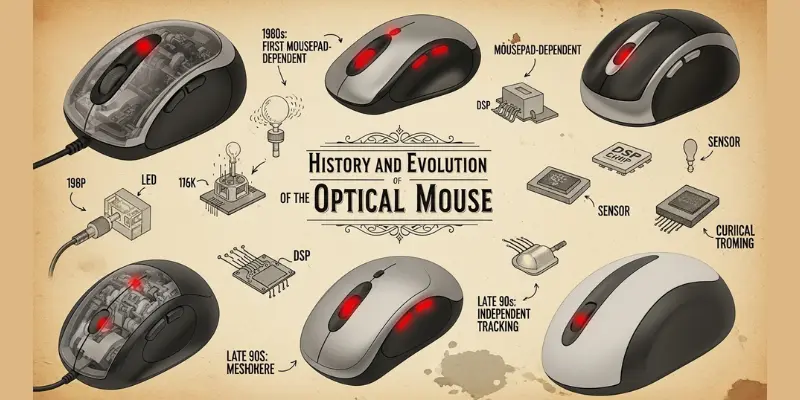
History and Evolution of Optical Mouse
The optical mouse has changed the way we use computers. It was first developed in 1981 and replaced the old mechanical mouse. Over the years, its technology improved with LED and infrared sensors. Today, it is fast, accurate, and easy to use.
1. First Optical Mouse
The first optical mouse was developed in 1981 by Steve Kirsch. It used a special mouse pad and light to detect movement. This design removed the problems caused by the rolling ball in mechanical mice.
2. Early Optical Mouse Technology
In the 1980s, optical mouse technology was expensive. It used sensors and light to track movement. Accuracy was better than mechanical and opto-mechanical mice. Users needed special surfaces to use it properly.
3. LED Based Optical Mouse
By the late 1990s, the optical mouse became more affordable. LED technology replaced earlier systems. The mouse could work on most flat surfaces. Cleaning was easy because no ball existed inside.
4. Infrared and Sensor Improvements
In the 2000s, infrared sensors improved optical mouse performance. Movement tracking became smoother and faster. Users could play games or work on the computer with higher accuracy.
5. Wireless Optical Mouse
Wireless optical mouse designs appeared in the 2000s. They used radio signals or Bluetooth. Users could work without cables. The mouse remained reliable and easy to use.
6. Modern Optical Mouse
Today, mouse designs include ergonomic shapes, adjustable DPI, and gaming features. Optical mouse technology continues to improve. It is widely used in homes, schools, and offices.
Parts of an Optical Mouse
A computer mouse may look simple, but it has many hidden parts working together. From the sensor at the bottom to the buttons on top, each component of an optical mouse plays a special role. Here is an explanation of each part of optical mouse in complete detail for beginners.
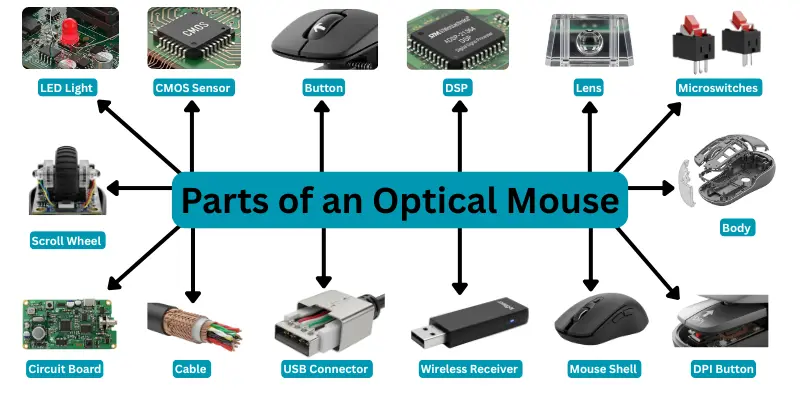
Here are main Parts of Optical Mouse.
- LED Light
- CMOS Sensor
- Left Button
- Right Button
- Digital Signal Processor
- Lens/Prism
- Microswitches
- Scroll Wheel
- Body
- Circuit Board
- Cable
- USB Connector
- Wireless Receiver
- Mouse Shell
- DPI Button
- Internal Circuit Board
- Mouse feet
1. LED Light
The LED light is located at the bottom of the optical mouse, near the back. It shines light onto the surface beneath the mouse. This light helps the sensor detect movement. Without the LED, the mouse cannot track the pointer accurately.
2. CMOS Sensor
The CMOS sensor is placed next to the LED at the bottom of the mouse. It captures the reflected light from the surface and converts it into digital signals. These signals tell the computer how and where the pointer should move.
3. Left Button
The left button is on the top front of the mouse, under the index finger. It is used to select items, open files, and perform commands. Clicking this button sends a signal to the computer.
4. Right Button
The right button is next to the left button on the top front of the mouse. It is used to open menus, options, and context actions on the computer. It helps in accessing additional commands.
5. Digital Signal Processor (DSP)
The DSP is inside the mouse on the circuit board. It processes the signals from the sensor and buttons. The DSP translates physical movements into computer-recognized cursor movements.
6. Lens / Prism
The lens or prism is located above the sensor inside the mouse. It focuses the reflected light onto the CMOS sensor. This ensures that the sensor receives clear images for accurate tracking.
7. Microswitches
Microswitches are beneath the left and right buttons. They detect button clicks. When a button is pressed, the microswitch sends a signal to the DSP to tell the computer that the button has been clicked.
8. Scroll Wheel
The scroll wheel is between the left and right buttons on top of the mouse. Rolling the wheel scrolls through web pages or documents. Some scroll wheels also click for extra commands.
9. Body
The body of the mouse covers all internal parts. It gives the mouse shape and makes it easy to hold. It also protects the sensor, circuit board, and light from damage.
10. Circuit Board
The circuit board is inside the body of the mouse. It connects the sensor, buttons, and other electronic parts. The board ensures all signals are sent correctly to the computer.
11. Cable
The cable is attached to the front of a wired mouse. It carries both power and data signals from the mouse to the computer.
12. USB Connector
The USB connector is at the end of the cable. It plugs into the computer’s USB port. It provides power and allows communication between the mouse and computer.
13. Wireless Receiver
In wireless mice, the receiver is a small device that plugs into the USB port of the computer. It receives signals from the mouse and allows cursor movement without cables.
14. Mouse Shell
The shell is the outer cover of the mouse. It includes the top surface and sides. It provides a comfortable grip and protects internal parts.
15. DPI Button
The DPI button is usually on top of the mouse. It changes the sensitivity of the pointer, allowing faster or slower cursor movement depending on the user’s need.
16. Internal Circuit Board
The internal circuit board is located inside the mouse under the shell. It processes signals from the sensor, buttons, and scroll wheel. It acts as the brain of the mouse.
17. Mouse Feet
Mouse feet are small pads at the bottom corners of the mouse. They help the mouse glide smoothly over a desk or mouse pad. They reduce friction and make movement easier.
How Does an Optical Mouse Work?
An optical mouse is a computer device that helps the user control the pointer on the screen. It works without a rolling ball and uses light and a sensor to track movement. Every part of the optical mouse has a special function that makes it work smoothly. Let’s explain how does an optical mouse work.
- The LED light shines on the desk or mouse pad.
- The light reflects back to the CMOS sensor.
- The lens focuses the reflected light onto the sensor.
- The sensor captures the movement and sends it to the DSP.
- The DSP calculates the movement and sends the signal to the computer.
- The pointer moves on the screen according to the mouse movement.
- Button presses are detected by microswitches and sent to the DSP for click actions.
- Scroll wheel rotation sends signals to scroll pages up or down.
- DPI button changes the sensitivity of the sensor if needed.
Types of Optical Mouse
There are different types of optical mice based on how they connect to the computer, their features, and their usage. Each type is designed to suit different needs, such as gaming, office work, or general computer use. Here is a complete explanation of each type of mouse for beginners.
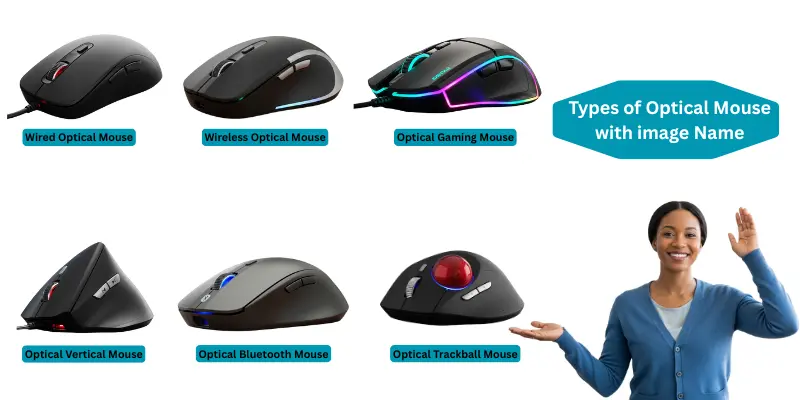
Here are 6 types of Optical Mouse included:
- Wired Optical Mouse
- Wireless Optical Mouse
- Optical Gaming Mouse
- Optical Vertical Mouse
- Optical Bluetooth Mouse
- Optical Trackball Mouse
1. Wired Optical Mouse
A wired optical mouse connects to the computer using a cable, usually with a USB connector. It gets power directly from the computer and sends signals through the wire. This type of mouse is reliable, does not need batteries, and is simple to use. It is commonly used in offices and schools for daily computer tasks.
2. Wireless Optical Mouse
A wireless optical mouse works without a cable. It uses a small wireless receiver or Bluetooth to connect to the computer. This type allows free movement on the desk and keeps the workspace clean. Wireless optical mice require batteries to operate, and they are ideal for home and office users who prefer a cable-free setup.
3. Optical Gaming Mouse
An optical gaming mouse is designed for gamers. It has a higher DPI (dots per inch) sensitivity, fast response, and often comes with backlights or customizable buttons. These features make the mouse accurate and quick, which is essential for gaming. Gaming mice are usually more durable and ergonomic for long use.
4. Optical Vertical Mouse
An optical vertical mouse is designed for comfort and to reduce hand strain. Its body is shaped vertically, so the hand stays in a natural position while using the mouse. It works the same way as a normal optical mouse but is preferred by users who spend long hours on the computer and want to prevent wrist pain.
5. Optical Bluetooth Mouse
This type of optical mouse connects to computers and laptops using Bluetooth technology. It does not need a USB receiver if the computer supports Bluetooth. Bluetooth optical mice are portable, wireless, and easy to use on laptops while traveling.
6. Optical Trackball Mouse
An optical trackball mouse has a stationary body, and the user moves a ball on top of the mouse to control the pointer. The sensor inside the mouse detects the movement of the ball. It is useful in small spaces and provides precise control for tasks like graphic designing.
Optical Mouse Uses
Most computer users rely on optical mice for smooth and accurate control. They use light and sensors to track movement, making them faster and more precise than older mechanical mice. Here are 10 uses of optical mouse for beginners.
Here are 10 Uses of Optical Mouse.
- Home Use: Optical mice are perfect for everyday tasks at home.
- Office Work: Optical mice help employees work efficiently in spreadsheets, presentations, and document editing.
- Gaming: Optical gaming mice are widely used by professional and casual gamers.
- Education: Students and teachers use optical mice in classrooms and online learning.
- Graphic Designing: Designers use optical mice for drawing, designing, and editing images.
- Programming and Coding: Optical mice assist programmers in navigating code editors and development tools efficiently, making coding faster and more accurate.
- Video Editing: In video editing studios, optical mice allow editors to control timelines, cut clips, and add effects with precision.
- Data Entry: Professionals working with large datasets benefit from optical mice for accurate selection and editing of cells in spreadsheets.
- Presentation Control: Optical mice are used to control slides and presentations smoothly in business meetings and conferences.
- Multimedia Creation: Artists and content creators use optical mice for music production, animation, and photo editing where precise pointer control is essential.
Difference Between Mechanical Mouse and Optical Mouse
There are many differences between a mechanical mouse and an optical mouse. Here is a complete and detailed explanation of both types of mice, designed especially for students.
| Feature | Mechanical Mouse | Optical Mouse |
|---|---|---|
| Working Technology | Uses a rolling ball to detect movement | Uses LED light and optical sensor in mouse to detect movement |
| Accuracy | Less accurate, prone to slipping | High accuracy, precise pointer control |
| Maintenance | Needs frequent cleaning of the ball and rollers | Low maintenance, no ball to clean |
| Surface Compatibility | Works only on smooth surfaces | Works on almost any surface with or without a mouse pad |
| Durability | Rolling parts may wear out over time | More durable, fewer moving parts |
| Speed | Slower pointer response | Faster and smoother tracking |
| Use in Gaming | Not ideal for gaming | Perfect for gaming due to high DPI and fast response |
| Noise | Slightly noisier because of moving parts | Quieter during use |
| Cost | Usually cheaper | Slightly more expensive than mechanical mice |
| Design | Bulky, older design | Sleek, modern design |
Difference Between Optical Mouse and Laser Mouse
There are many differences between a laser mouse and an optical mouse. Here is a complete and detailed explanation of both types of mice, designed especially for students.
| Feature | Optical Mouse | Laser Mouse |
|---|---|---|
| Light Source | Uses LED light | Uses laser light |
| Tracking Surface | Works best on non-reflective surfaces | Works on almost any surface, including glass |
| Precision | Moderate precision | High precision, suitable for detailed tasks |
| Cost | Generally cheaper | Usually more expensive |
| Gaming Use | Suitable for casual gaming | Preferred for professional gaming due to higher DPI |
| Power Consumption | Low | Slightly higher than optical mice |
| Durability | Standard durability | High durability with advanced sensors |
| Smoothness | Smooth on mouse pad | Very smooth, works on multiple surfaces |
| Professional Use | Office, home, basic tasks | Graphic design, CAD, gaming, precise editing |
| Sensor Type | CMOS sensor | Laser sensor (advanced) |
Advantages and Disadvantages of Optical Mouse
Understanding the advantages and disadvantages of optical mouse helps you choose the right mouse for work, gaming, or study.
| 10 Advantages of Optical Mouse |
|---|
|
| 10 Disadvantages of Optical Mouse |
|---|
|
Conclusion
The optical mouse is an essential computer device that makes controlling the pointer easy, smooth, and precise. It works using LED light and an optical sensor, which makes it faster and more reliable than traditional mechanical mice. Optical mice are widely used at home, in offices, for gaming, education, and professional work.
FAQs about What is Optical Mouse
These FAQs about optical mouse cover its definition of mouse, types, functions, and usage tips.
A mouse is a computer device used to move the pointer and interact with the screen.
An optical mouse is a mouse that uses LED light and a sensor to detect movement.
A computer mouse is an input device.
It is called a mouse because it looks like a small mouse with a tail (cable).
Move it on a flat surface and click buttons to control the pointer.
“Mice” is the plural of mouse, meaning more than one computer mouse.
It controls the pointer, selects items, and interacts with the computer.
A wireless optical mouse works without a cable using a USB receiver or Bluetooth.
A wired optical mouse connects to the computer using a cable and USB port.
It is a diagram showing the parts of an optical mouse, like LED, sensor, buttons, and scroll wheel.