What is Touchpad and How it Works on Laptops
Published: 22 Nov 2025
Struggling with a laptop without a mouse can be frustrating. It is where a touchpad comes in handy. There are times when the cursor won’t move or gestures feel awkward, but they are simple to fix once you understand how it works. Then, you can save time and avoid extra devices. Other tips, like adjusting sensitivity or enabling tap to click, shall make your work smoother and easier.
If you want to learn complete details about what is touchpad, like touchpad vs mouse, FAQs about touchpads, and more, you can check EC Science for full information.
What is a Touchpad?
A touchpad is a small, flat, sensitive surface on a laptop or computer. It allows users to move the cursor, click, scroll, and perform gestures without a mouse. A touchpad is also called a trackpad, laptop pad, or computer finger pad. Most laptops have a built-in touchpad, and some computers also use an external touchpad for PC.
History of Touchpad
The touchpad has an interesting history that shows how technology evolved to make laptops easier to use. It is said that the first idea of a touchpad came in the 1980s. There are reports that Jack Hall, an engineer, was among those who worked on the early concept of a touchpad.
The touchpad was introduced to replace the need for a mouse in laptops. It is important because laptops are portable, and carrying a separate mouse was not always convenient. Then, engineers thought of a small, flat surface that could detect finger movements and control the cursor efficiently. Other reasons for its invention included saving space on laptops and making computing faster for mobile users.
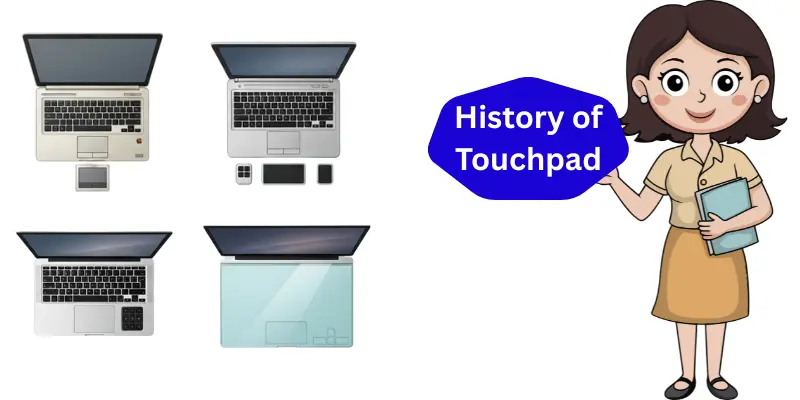
Initially, the touchpad was not widely known. There are many accounts that it became more popular only in the early 1990s when laptops started becoming common in offices. It is here that companies like Apple and IBM helped bring the touchpad into mainstream laptops.
The theory of touchpad operation was developed over several years. Engineers studied how to detect finger movement using sensors and how gestures could be recognized. It is said that it took almost a decade to develop the complete design theory. Those who worked on this technology improved it incrementally, making it more accurate and reliable.
Over time, touchpad models kept updating. There are new features like multi-touch gestures, scrolling, zooming, and pressure sensitivity. They are updated as laptops evolve, and other enhancements continue to make them more user-friendly. Then, modern laptops use touchpads that are fast, precise, and sometimes even replace a mouse completely.
Types of Touchpads
Touchpads are an important part of laptops and some computers. It is the main tool for moving the cursor and performing gestures. There are different types of touchpads, and they are designed for various devices and purposes. Here are 4 types of touchpad included:
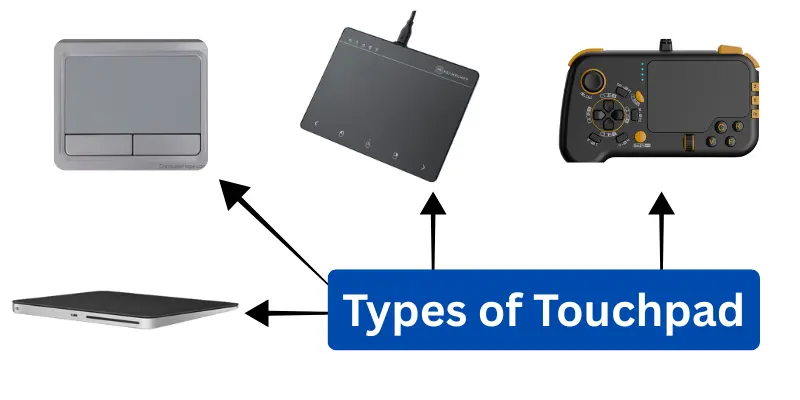
- Laptop Touchpad
- External Touchpad
- Apple / Mac Trackpad
- Gaming Touchpad
In the following, we shall explain each type of touchpad, including how they work and what they are used for.
1. Laptop Touchpad
A laptop touchpad is built into most laptops. It is usually located below the keyboard. They are used to move the cursor, click, drag, and perform gestures like scrolling. This type is perfect for everyday use without a mouse.
2. External Touchpad
An external touchpad is a separate device that connects to a computer. It is useful when a built-in touchpad is unavailable or for desktop computers. They are used for cursor control, gestures, and sometimes multi-touch actions like zooming.
3. Apple / Mac Trackpad
Apple or Mac trackpads are specially designed for Mac devices. It is a touch-sensitive pad that supports multiple gestures. They are used for smooth navigation, scrolling, swiping between apps, and zooming images or pages.
4. Gaming Touchpad
A gaming touchpad is designed for better precision during gaming. It is often more responsive and supports custom gestures. They are used to control games, perform quick actions, and replace a traditional mouse for specific tasks.
How Does a Touchpad Work?
A touchpad is more than just a flat surface on your laptop. It is an input device that detects finger movement and sends signals to the computer. There are sensors under the pad that track where and how your fingers move. Then, the computer moves the cursor accordingly, giving users smooth control without a mouse.
How it works:
- Finger detection: The pad senses the touch of your finger.
- Movement tracking: It tracks the direction and speed of your finger.
- Gestures: Multi-touch gestures like scrolling, zooming, and swiping are recognized.
- Clicking and tapping: Taps on the pad act as mouse clicks.
Some touchpads use capacitive technology, where electric charges detect finger movement. Others use pressure-based sensors, in which the pad reacts to pressure. They are built to make cursor control accurate and easy for work, browsing, or gaming.
Tip: Users can adjust touchpad settings to change sensitivity or enable tap-to-click for better comfort.
Example in devices:
- Laptop touchpad: works on most laptops and is used daily.
- External touchpad: connects to desktops and can perform multi-touch gestures.
- Apple trackpad: recognizes more gestures like swiping between apps.
Customizing Touchpad Settings
A touchpad is a very useful tool on your laptop, but sometimes its default settings may not feel comfortable. It is important to know how to customize it so that using your laptop becomes easier and smoother. There are several settings options that let you adjust sensitivity, gestures, and tapping. They are easy to change, so your touchpad can work exactly how you like it.
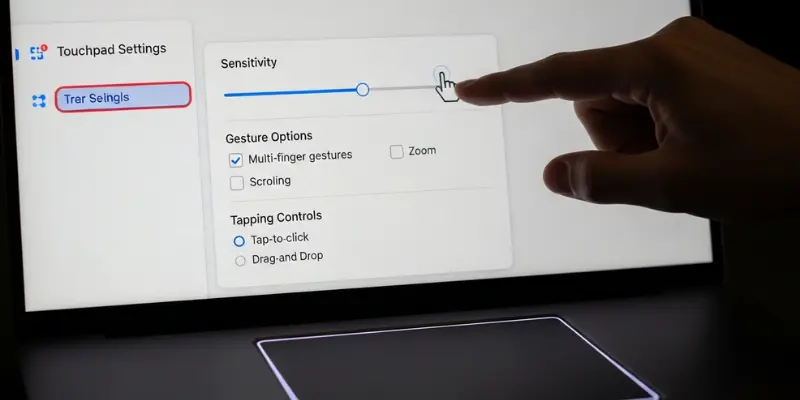
Touchpad Settings You Can Customize
- Pointer Speed / Sensitivity: Adjust how fast the cursor moves across the screen when you slide your finger.
- Tap-to-Click: Enable or disable tapping the touchpad instead of pressing the buttons to click.
- Two-Finger Scrolling: Turn on or off vertical and horizontal scrolling using two fingers.
- Gesture Controls: Enable multi-finger gestures like pinch-to-zoom, rotate, and three-finger swipe for switching apps.
- Palm Rejection: Prevent accidental cursor movement when your palm touches the touchpad while typing.
- Edge Scrolling: Allow scrolling by moving your finger along the right or bottom edge of the touchpad.
- Button Configuration: Change which part of the pad serves as the left or right click.
- Disable Touchpad While Typing: Automatically stops cursor movement while typing to avoid mistakes.
- Tap Delay / Sensitivity: Adjust how long the touchpad waits before a tap is registered.
- Scrolling Direction: Choose natural or traditional scrolling direction, where content moves as your fingers move.
- Touch Feedback: Turn on or off audio or vibration feedback for touchpad actions.
- External Device Priority: Decide if an external mouse should automatically disable the touchpad when connected.
These settings shall give you full control over how your touchpad behaves. Then, you can use gestures, clicks, and scrolling in the way that suits you best. Other tweaks, like adjusting sensitivity or gestures for different apps, shall make your touchpad work even smarter.
Technological Advancements
The touchpad has come a long way since its first introduction. It is no longer just a simple flat surface for moving the cursor. There are advanced sensors, multi-touch features, and gesture controls that make it smarter and easier to use. They are designed to give users more comfort and efficiency when working or playing on a laptop. Then, new technologies have made touchpads faster, more accurate, and capable of replacing a mouse in many situations.
Key Advancements in Touchpad Technology
- Multi-Touch Gestures: Modern touchpads support two, three, or even four-finger gestures for scrolling, zooming, switching apps, and opening menus.
- Pressure Sensitivity: Some touchpads can detect how hard you press, giving more control for drawing, design, or gaming.
- Precision Touchpads: These touchpads offer smoother cursor movement and better responsiveness compared to older models.
- Haptic Feedback: Users can feel small vibrations or clicks from the touchpad, simulating physical button presses.
- Edge and Palm Detection: The touchpad can now ignore accidental touches from palms while typing.
- Customizable Gestures: Users can assign specific functions to different gestures, making workflow faster.
- Integration with Operating Systems: Advanced touchpads work seamlessly with Windows Precision Drivers or Apple’s trackpad gestures.
- Durable Materials: Modern touchpads use high-quality glass or smooth materials for a comfortable feel and longer life.
- Gaming Enhancements: Some touchpads are optimized for gaming with faster response times and gesture precision.
These advancements shall give a more natural and intuitive experience when using a laptop. Then, whether it is for work, study, or gaming, the touchpad can perform multiple tasks efficiently. Other improvements, like software updates and driver enhancements, have gone a long way to make touchpads smarter and more reliable.
Applications Beyond Laptops
A touchpad is not limited to just laptops. It is used in many devices where users need precise control without a traditional mouse. There are modern devices, like desktops, tablets, and mobile devices, that benefit from touchpad technology. They are designed to make navigation easier, faster, and more intuitive. Then, as technology has grown, touchpads have found other creative uses beyond regular laptops.
Key Applications Beyond Laptops
- External Touchpads for Desktops: Users can attach a trackpad for a computer or a touchpad for a PC to navigate without a mouse.
- Mac Devices: Apple uses touchpads on devices like the Mac mini and iPad Pro, as well as the Apple trackpad, for smooth gestures.
- Mobile Touchpads: Some mobile devices or accessories use touchpad-like surfaces to control apps and menus. (mobile touchpad)
- Gaming Accessories: Gaming touchpads help players perform precise movements and gestures in games.
- Design and Creative Tools: Artists use pressure-sensitive touchpads for drawing, sketching, and editing software.
- Professional Workstations: Designers and engineers may use laptop trackpads to interact with complex software more efficiently.
- Accessibility Tools: Touchpads can be customized for users who cannot use a traditional mouse.
- Presentation Devices: Some touchpads are used for controlling slides or media in meetings without a keyboard or mouse.
With these applications, touchpads have gone beyond simple cursor control. Then, they have become essential tools for creativity, gaming, and professional work. Other innovative uses are constantly being developed, making them even more versatile for different users.
Common Uses of a Touchpad
A touchpad is more than just a flat surface on a laptop. It is a versatile tool that helps users control their devices efficiently. There are many gestures and functions built into touchpads, and they are designed to make everyday tasks faster. Then, knowing how to use a touchpad properly can save time and make navigation smoother.
Main Uses of a Touchpad
- Moving the Cursor: Slide your finger across the pad to move the pointer on the screen.
- Clicking and Double-Clicking: Tap or press the pad to select items, open files, or run applications.
- Dragging and Dropping: Hold and drag files or windows easily across the screen.
- Two-Finger Scrolling: Scroll up, down, or sideways by sliding two fingers on the pad.
- Pinch-to-Zoom: Zoom in or out on images, documents, or web pages using two fingers.
- Three-Finger Swipes: Switch between applications or desktops quickly.
- Right-Click Function: Tap with two fingers to open context menus, similar to a mouse right-click.
- Gesture Shortcuts: Customize gestures for specific actions like opening notifications or switching windows.
- Palm Rejection: Avoid accidental cursor movement while typing.
- Precision Movements: Useful for tasks requiring exact control, like drawing or design work.
By using these features, touchpads give a smooth and efficient way to interact with laptops and other devices. Then, whether it is for work, gaming, or casual browsing, they are an essential tool. Other gestures and customizations.
Touchpad Troubleshooting Tips
A touchpad is very useful, but sometimes it may stop working or behave unexpectedly. It is important to know simple troubleshooting steps to fix common problems. There are easy ways to check settings, clean the pad, or update drivers. They are simple actions that can save time and avoid frustration. Then, with the right approach, your touchpad can work smoothly again.
Common Touchpad Issues and Fixes
- Touchpad Not Responding: Check if the touchpad is enabled in the system settings.
- Cursor Moves Erratically: Adjust the pointer speed or sensitivity in touchpad settings.
- Tapping or Gestures Not Working: Make sure tap-to-click and multi-touch gestures are enabled.
- Touchpad Disabled While Typing: Some laptops automatically disable the touchpad when typing. Check this setting if you want continuous use.
- Driver Issues: Update the touchpad driver through Device Manager or the manufacturer’s website.
- Physical Dirt or Debris: Clean the touchpad of the laptop gently to remove dust, oil, or sticky residue.
- External Mouse Conflicts: If using an external mouse, check if it automatically disables the touchpad. Adjust the settings if needed.
- Sensitivity Problems: Modify tap delay and sensitivity settings to match your comfort.
- Software Glitches: Restart the computer or check for system updates.
These tips shall give you a smooth experience with your touchpad. Then, whether it is a laptop trackpad, an external touchpad Mac, or a touchpad for PC, troubleshooting is simple and effective. Other solutions, like using System Restore or contacting support, shall help if the basic steps have been unsuccessful.
Touchpad vs Trackpad
A touchpad and a trackpad are both input devices used to control the cursor on a laptop or computer. It is important to know how they differ, so users can choose the right one for their needs.
| Feature | Touchpad | Trackpad |
|---|---|---|
| Definition | It is a flat, sensitive pad on laptops that lets users move the cursor. | It is a type of touchpad mainly used in Apple devices, often with advanced multi-touch features. |
| Devices | Found on most laptops. | Found on MacBooks, Mac Mini, and some Apple iPads. |
| Gestures | Supports basic gestures like tap, drag, and scroll. | Supports multi-touch gestures like pinch, rotate, and swipe. |
| Sensitivity | Standard sensitivity, adjustable in settings. | High sensitivity, highly responsive to gestures. |
| Customization | Limited options in most laptops. | Offers advanced settings and customization. |
| Compatibility | Works with most operating systems like Windows and Linux. | Optimized for macOS and Apple devices. |
| Purpose | Designed for basic navigation and typing tasks. | Designed for smooth navigation, creative work, and multi-touch controls. |
Touchpad vs Mouse
A touchpad and a mouse do the same job, but it is clear that both feel very different to use. There are many situations where one works better than the other, and they are tools that help people control the cursor with ease.
| Feature | Touchpad | Mouse |
|---|---|---|
| What it is | It is a built-in flat pad on laptops used to move the cursor. | It is a separate device that connects to a computer. |
| Ease of Use | There are gestures for tapping, scrolling, and zooming. | There are physical buttons and a scroll wheel for control. |
| Portability | They are always built into the laptop, so it is easy to carry. | It is small, but you shall carry it separately. |
| Accuracy | The hand fits around the mouse for a better grip. | It is more accurate for gaming, design, and fast work. |
| Comfort | Here, the hand stays on the laptop surface. | It is powered by the laptop, so no charge is needed. |
| Gestures | There are multi-touch gestures like pinch-to-zoom and two-finger scroll. | There are limited gestures, mostly scroll and click. |
| Space Needed | It is usable in tight spaces like planes or small desks. | It needs space to move around. |
| Battery / Power | It is powered by the laptop, so no charge needed. | Some mice have batteries, others use cables. |
| Learning Curve | It is easy to use once you know how to tap and slide. | It is simple to learn, and most people know how to use it. |
| Best For | Good for travel, casual use, and everyday tasks. | Best for gaming, long work hours, and detailed tasks. |
| Extra Features | Other advanced models have force touch and gesture control. | Other mouse types include wireless, gaming, and ergonomic models. |
Conclusion
So friends, it’s time to wrap up! In this guide, we have explained what is touchpad and how it helps you control your laptop with simple finger moves. It is a small pad, but it plays a big role in daily tasks. There are many gestures you can use, and they are designed to make scrolling, clicking, and navigation smooth. Then, a good touchpad can save you from slow movement and hard controls.
FAQs About Touchpad
It is normal for users to have many questions about touchpads because there are features that look simple but feel confusing at times. Here are clear answers that shall give easy help for beginners who want to know how a touchpad works and why laptops use it.
It is often called a trackpad, and there are some people who also call it a laptop pad. They are all the same thing.
It is easy. There are gestures like using two fingers on the pad, and they are used to scroll up or down. Then you can move through the pages smoothly.
It is because laptops already have a built-in touchpad. There are many users who find it enough for daily work, so a mouse is not needed.
Laptops use touchpads because they are small, simple, and fit well in the design. It is also easier to carry a laptop without other devices.
It is your choice. There are people who prefer a mouse, and they are free to use one. Then some users stick to the touchpad for quick control.
Yes. It is possible to use an external touchpad. There are many models that work with desktop computers.
The first touchpad was created in the early 1990s. It is said that George E. Gerpheide is the person who invented it.
It is available in computer shops and online stores. There are many brands that shall give different features based on your need.
It is often caused by dust, moisture, or sensitivity issues. There are settings that can help fix this problem.
It is simple. There are options in the laptop settings, and they are easy to turn on or off. Then you can control when to use it.
It is usually due to settings or driver issues. There are quick fixes like restarting the device or updating drivers.
Yes. It is supported on most modern devices, and there are gestures that make scrolling, zooming, and switching easy.
It is simple. A touchpad sits below the keyboard and controls the cursor, while a touchscreen reacts when you touch the screen directly. They are two different input devices.