How to Check the Group Policy Applied on a Computer
Published: 19 Jan 2026
Group Policy controls many settings on a Windows computer. It decides how users access features and tools. There are rules that affect security, software, and system behavior. Knowing how to check the Group Policy applied on a computer helps users see which rules are active and why certain settings exist.
Now, let’s get started to learn how to check the group policy applied on a computer.
Understand What Is Group Policy
Group Policy is a rule system in Windows. It controls settings on a computer. It manages security, access, and system behavior. There are rules for users and rules for computers. Here are 2 types of group policy included.
- Local Group Policy: It is for one computer only.
- Domain Group Policy: It works on many computers in a network.
Need Requirements Before Checking Group Policy
Before checking Group Policy, some things are needed.
- Windows Pro or Enterprise edition
- Administrator access
- Computer may belong to a domain
Option 1. Click the State Column in Local Group Policy Editor
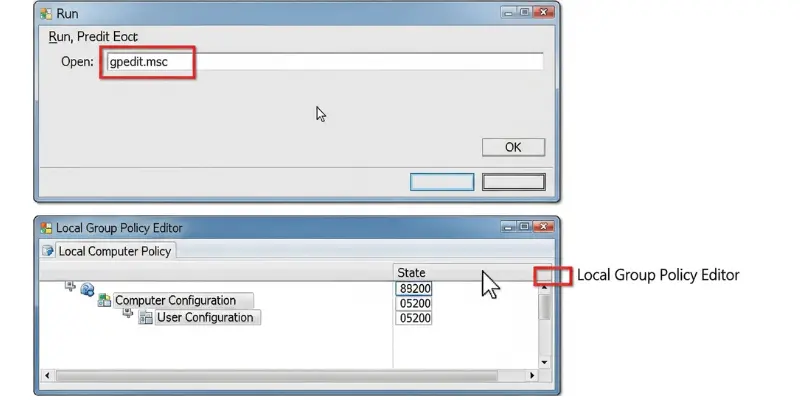
The Local Group Policy Editor is a useful Windows tool that helps users manage system settings easily. Its State column shows whether a policy is Enabled, Disabled, or Not Configured, allowing users to quickly check settings with just a click without opening multiple menus.
Step 1.
- Press the Windows + R keys. The Run dialog box appears.
- Type gpedit.msc into the blank box.
- Click on Ok button to continue.
- Appears Local Group Policy Editor window on computer screen.
Step 2.
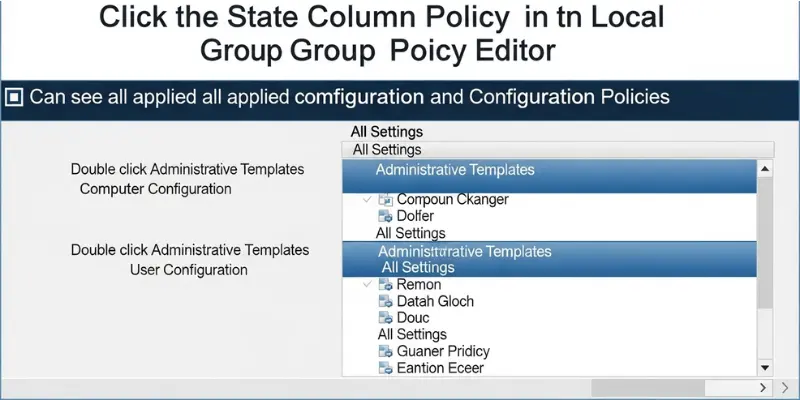
- You can see all applied computer configuration policies and user configuration policies.
- You can see all applied computer configuration policies in the left sidebar of the Local Group Policy Editor.
- Double click on Administrative Templates below Computer Configuration option.
- Double-click on All Settings. The right panel shows a list under the All Settings section.
- Double click on Administrative Templates below User Configuration option.
- Double-click on All Settings. The right panel shows a list under the All Settings section.
Step 3.
- All settings appear in the right panel.
- You can also see each setting’s state in the State column.
- To check the Group Policy applied or enabled on your computer.
- Click on column title state.
- An upward arrow appears on the State column to sort the policy settings in ascending order.
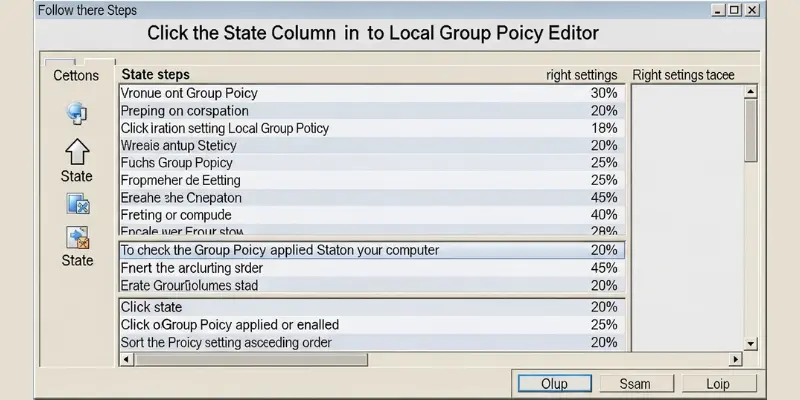
After that, the Local Group Policy Editor will display settings that are “Enabled” or “Disabled” at the top, while settings marked “Not Configured” appear below.
Option 2. Use the Filter Options in Local Group Policy Editor
Use the Filter Options in the Local Group Policy Editor to choose the type of policy settings to display. This helps you apply multiple conditions to find a specific policy setting. How to check the Group Policy applied to your computer using the Filter Options? Follow the steps below to learn how.
Step 1.
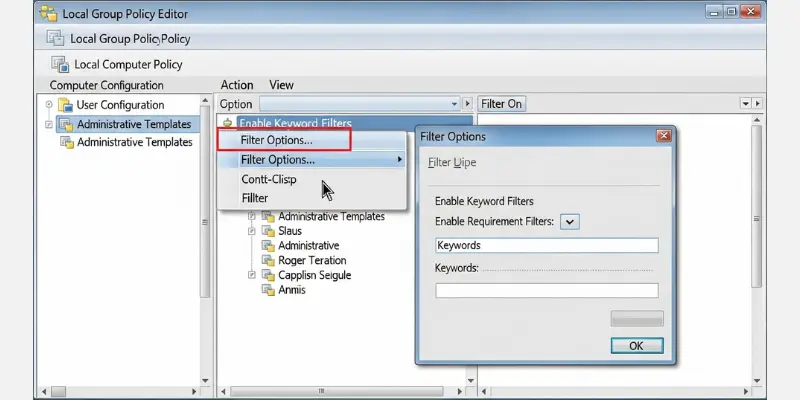
- Open Local Group Policy Editor on your Computer.
- Right click on Administrative Templates below Computer Configuration and User Configuration according to your need.
- Select Filter Options from the drop down menu. Appear new screen under filter options.
Step 2.
- In Filter options under the section of Select the type of policy settings to display.
- Click on the arrow under Configured options and show drop menu.
- Select Yes Option.
- Click on OK button to continue.
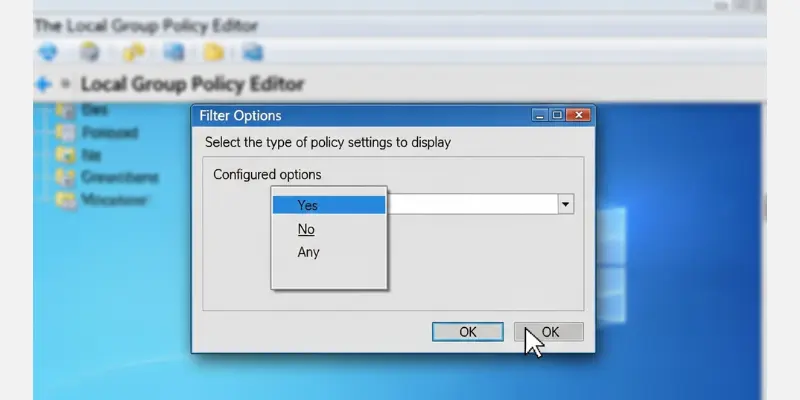
After setting the type of policy settings to display, only the policies that are configured meaning those with the states “Enabled” or “Disabled” will be listed. You can then review all applied group policies in the displayed folders.
Option 3. How to Check the Group Policy Applied on a Computer Using Resultant Set of Policy (rsop.msc)
Windows uses many hidden Group Policy settings to control security and system behavior. With the Resultant Set of Policy (rsop.msc) tool, you can quickly see which policies are active, making system management and troubleshooting easier.
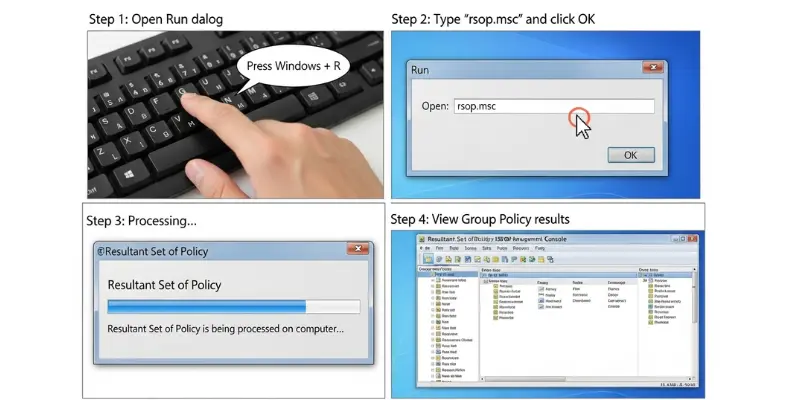
Step 1.
- Press the Windows + R keys. The Run dialog box appears.
- Type rsop.msc into the blank box.
- Click on Ok button to continue.
- Appears Resultant Set of Policy is being processed on computer screen.
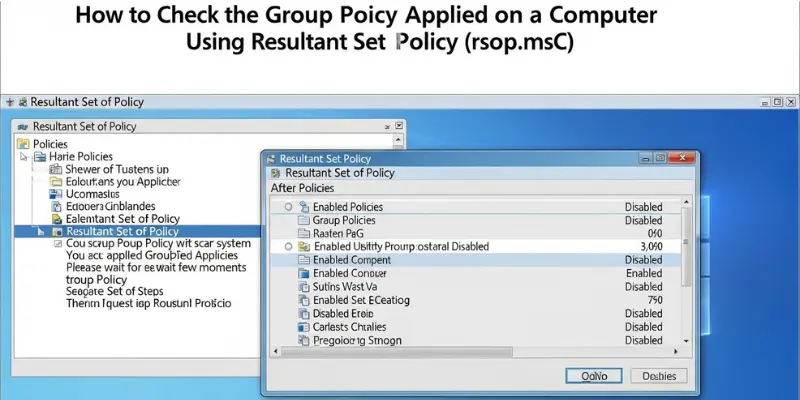
Step 2.
- The Resultant Set of Policy tool will scan your system to identify the applied group policies, so please wait for a few moments.
- After scanning, a new window named Resultant Set of Policy will appear.
- You can see which policies are Enabled or Disabled.
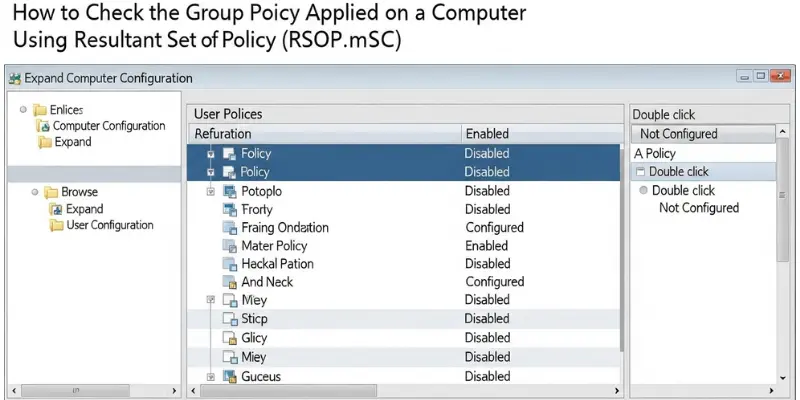
Step 3.
- On the left panel, expand Computer Configuration and User Configuration.
- Browse the folders and see policies on the right panel.
- Each policy shows Enabled, Disabled and Not Configured status.
- Double click any policy to view more details.
Important Notes
✔️ You can only view policies with this tool, you cannot modify them.
✔️ For a detailed report or policies not visible in rsop.msc, you can use the Command Prompt with the gpresult command.
Option 4. Use Command Line to Check Applied Group Policies
Every Windows computer uses many group policies to manage security, updates, and system settings. Using the command line is a quick and reliable way to check which policies are active on your system.
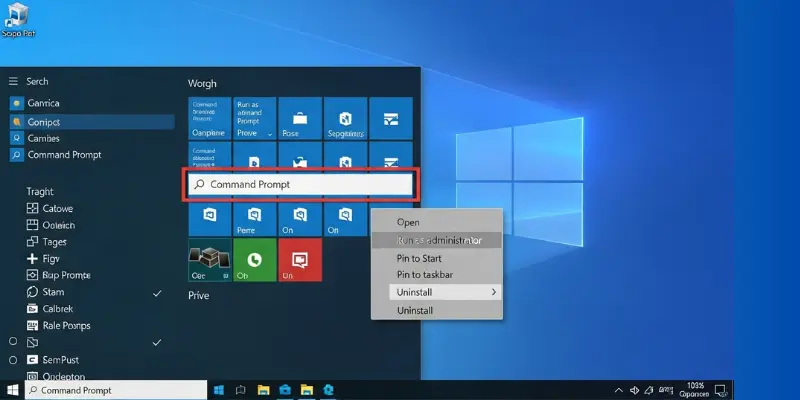
Step 1.
- Press the Windows key on your keyboard to open the Start menu.
- Type Command Prompt in the search bar.
- Right Click on Command Prompt.
- Show drop down menu.
Step 2.
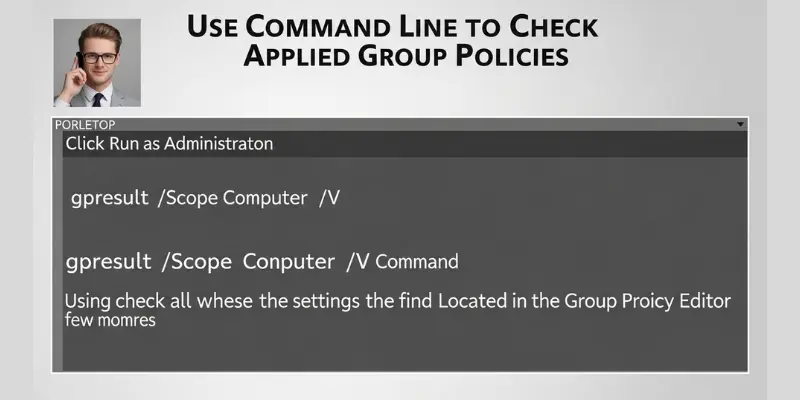
- Click on Run as Administrator.
- Type gpresult /Scope Computer /v Command and Enter button press on your keyboard and run this command.
- Wait for few moments.
- Using the Command Prompt, you can check all the settings and find exactly where they are located in the Local Group Policy Editor.
Conclusion
Checking applied Group Policy helps users understand which rules control their system. Tools like RSoP, gpresult, and the Local Group Policy Editor make it easy to view these settings. This also helps in troubleshooting problems and managing system configurations better.
FAQs About How to Check the Group Policy Applied on a Computer
A normal user can see limited policy information. Full details usually require administrator access.
Press Windows + R, type rsop.msc, and press Enter. The tool will show all applied user and computer policies.
Open Command Prompt as administrator, type gpresult /r, and press Enter. This command shows applied policies for the user and computer.
Yes, Group Policy can restrict access to USB devices, Control Panel, internet settings, and other system features.
Group Policy updates automatically about every 90 minutes. Administrators can also force an update using gpupdate /force.
Using RSoP is the simplest method for beginners because it shows all applied policies in an easy-to-read format.
Yes, you should run the Command Prompt as an administrator to view all applied computer policies.
The Command Prompt provides a text-based detailed report, while the Local Group Policy Editor shows a visual interface for browsing settings. Command Prompt is faster for a quick check, and the editor is easier to navigate visually.