Keyboard Keys
Published: 3 Mar 2026
Keyboard keys are the first step in learning basic computer skills. Students and beginners start typing with alphabet and number keys. Then they learn shortcut keys for faster work. Simple practice helps users remember where each key is placed.
What is Keyboard Keys
Keyboard keys are the small buttons on a computer keyboard. They are used to type letters, numbers, and commands. There are different types of keyboard keys, and each key has a special job. Beginners learn these keys first to use a computer easily.
Types of Keyboard Keys
Keyboard keys are divided into clear groups based on their function. It is easy to learn typing when a user knows these groups. There are different 10 types of keyboard keys, and they are used for writing text, giving commands, and moving on the screen. Each type has a simple role.
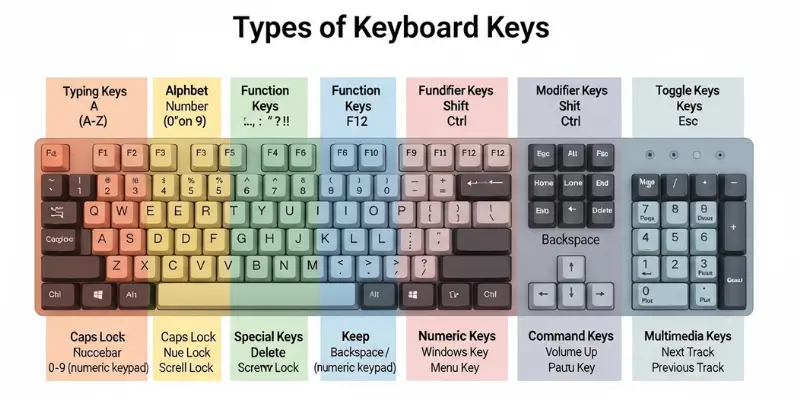
Here are 10 types of keys in keyboard keys included:
- Typing Keys
- Numeric Keypad Keys
- Function Keys
- Control Keys
- Modifier Keys
- Navigation Keys
- Toggle Keys
- Special Purpose Keys
- Command Keys
- Multimedia Keys
How Keyboard Keys Work
Keyboard keys work through a simple electronic process. It is a fast system that sends signals to the computer when a user presses a key. There are small switches under each key, and they are connected to a circuit board. The computer reads the signal and shows the result on the screen. This process happens in a fraction of a second.
- Key Press Action: A user presses a key. The key moves down and touches a switch under it. This physical movement starts the process.
- Switch Activation: The switch closes an electric path. There are thin layers or mechanical switches inside the keyboard. They detect the press and create an electric signal.
- Signal Creation: The keyboard creates a small electronic signal. Each key has its own unique signal code.
- Signal Transfer to Circuit Board: The signal moves through the keyboard circuit board. The board connects all keys to the controller.
- Keyboard Controller Reading: The controller reads the signal. It identifies which key was pressed.
- Scan Code Generation: Each key has a special scan code. The controller sends this code to the computer system.
- Computer Processing: The computer receives the code. It checks what action matches that code.
- Display Output: The computer shows the letter, number, or command on the screen.
- Shortcut Key Processing: When two keys are pressed together, the keyboard sends combined codes. The computer performs a quick action like copy or paste.
- Instant Response: The whole process happens very fast. The result appears on the screen immediately after the key press.
Keyboard Keys Layout
The keyboard layout shows how keys are arranged. The most common layout is called QWERTY. The name comes from the first six letters on the top row. There are many layouts in the world, but QWERTY was the most popular and has gone into common use.
A learner should practice daily. Practice helps fingers learn where each key sits.
What Are Keyboard Shortcut Keys?
Keyboard shortcut keys are key combinations. They send quick commands to the computer. Instead of using a mouse, a user presses keys together. The computer reads the command and performs the task instantly.
1. Basic Editing Shortcuts
Basic Editing Shortcuts help users edit text quickly and easily. Here is an explanation of basic editing shortcuts keys for beginners students.
- Ctrl + C: Copy selected text
- Ctrl + V: Paste copied text
- Ctrl + X: Cut selected text
- Ctrl + Z: Undo last action
- Ctrl + Y: Redo action
- Ctrl + A: Select all content
- Delete: Remove selected item
- Backspace: Remove previous letter
- Ctrl + B: Make text bold
- Ctrl + I: Make text italic
2. File and Document Shortcuts
File and document shortcuts keys manage files and documents. Here is an explanation of file and document short cuts keys for beginners students.
- Ctrl + N: Create new file
- Ctrl + O: Open file
- Ctrl + S: Save file
- Ctrl + P: Print document
- Ctrl + W: Close current window
- Alt + F4: Close program
- Ctrl + Shift + S: Save as new file
- F2: Rename file
- Ctrl + F: Find text
- Ctrl + H: Replace text
3. Window and System Shortcuts
These shortcuts control the system and open tools. Here is an explanation of windows and system shortcut keys for beginner students.
- Alt + Tab: Switch between programs
- Ctrl + Shift + Esc: Open task manager
- Windows + D: Show desktop
- Windows + L: Lock computer
- Windows + R: Open run box
- Windows + E: Open file explorer
- Windows + I: Open settings
- PrtSc: Take screenshot
- F5: Refresh page
- Esc: Cancel action
4. Browser Shortcut Keys
These shortcuts help during internet use. Here is an explanation of browser shortcut keys for beginner students.
- Ctrl + T: Open new tab
- Ctrl + W: Close tab
- Ctrl + Shift + T: Reopen closed tab
- Ctrl + Tab: Switch tabs
- Ctrl + L: Select address bar
- Ctrl + D: Bookmark page
- Ctrl + +: Zoom in
- Ctrl + -: Zoom out
- Ctrl + 0: Reset zoom
- Ctrl + J: Open downloads
5. Function Shortcut Keys
Function shortcut keys use the F1 to F12 keys at the top of the keyboard. Here is an explanation of function shortcut keys for beginner students.
- F1: Open help menu
- F2: Rename selected file
- F3: Open search feature
- F4: Open address bar (in browser)
- F5: Refresh page or window
- F6: Move cursor to address bar
- F7: Open spelling check (in some programs)
- F8: Open boot options (during startup)
- F9: Refresh document (in some apps)
- F10: Activate menu bar
- F11: Full screen mode
- F12: Open “Save As” option (in many programs)
Advantages and Disadvantages of Keyboard Keys
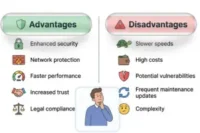
There are many advantages and disadvantages of keyboard keys. They help users type and control tasks quickly, but they also have some limits. Here are 10 advantages and disadvantages of keyboard keys, including:
| 10 Advantages of Keyboard Keys |
|---|
|
| 10 Disadvantages of Keyboard Keys |
|---|
|
Conclusion
So guys, it’s time to wrap things up! In this guide, we’ve learned all about keyboard keys and how they help us type, control, and use a computer easily. Keyboard keys may look simple, but they play a big role in daily computer work. I recommend you practice using different keys every day so your typing becomes faster and more accurate.
Now, take a look at your keyboard and try to name the keys you already know. And don’t forget to share this with your friends so they can improve their keyboard skills too!
FAQs About Keyboard Keys
Below are detailed and professional answers to common questions about keyboard keys. The explanations use simple and clear language so beginners can understand easily.
There are usually 101 to 104 keys on a standard keyboard. The number may change slightly depending on the brand and layout. Some keyboards include extra multimedia or shortcut keys.
There are several main types of keyboard keys:
- Typing keys
- Function keys
- Control keys
- Navigation keys
- Numeric keypad keys
- Special keys
Shortcut keys are combinations of two or more keys. They perform tasks faster than using a mouse. For example, Ctrl + C copies text and Ctrl + V pastes text. Shortcut keys improve productivity and save time.
The Enter key confirms an action or moves the cursor to the next line. It is commonly used when typing text, submitting forms, or opening commands.
The QWERTY layout is named after the first six letters on the top row. It was designed to reduce typing jams in early typewriters. Over time, it became the standard layout used worldwide.
If keyboard keys stop working, the user should:
- Check the connection
- Restart the computer
- Clean the keyboard
- Check battery level (for wireless keyboards)
- Update keyboard drivers
Simple troubleshooting often solves the issue.
Function keys (F1–F12) perform quick actions. For example:
- F1 opens help
- F5 refreshes a page
- F11 enables full screen
The function may change depending on the software being used.
Beginners can improve typing speed by:
- Practicing daily
- Learning shortcut keys
- Keeping correct finger position
- Avoiding looking at the keyboard
- Using typing practice tools
Backspace removes text before the cursor. Delete removes text after the cursor or deletes selected items. Both keys help in editing content.
Most keyboards have similar keys, but some may include extra keys. Gaming keyboards and multimedia keyboards often have additional shortcut buttons. Laptop keyboards may have smaller layouts compared to desktop keyboards.