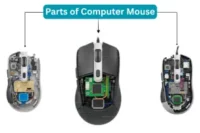
Parts of Computer Mouse
Published: 27 Mar 2026
A computer mouse may look simple, but it has many important parts. There is a left button, a right button, a scroll wheel, and a sensor. Each part plays a key role in helping the cursor move and perform actions. Knowing these parts can make computer work smooth and fun. Here are a complete guides about parts of computer mouse and their functions for students.
What is Parts of Computer Mouse and Their Functions
A computer mouse is a simple but important tool for using a computer. It is an input device that helps control the pointer on the screen. Each part of a mouse has its own role. Knowing these parts and their functions makes it easier to use a computer and work faster.
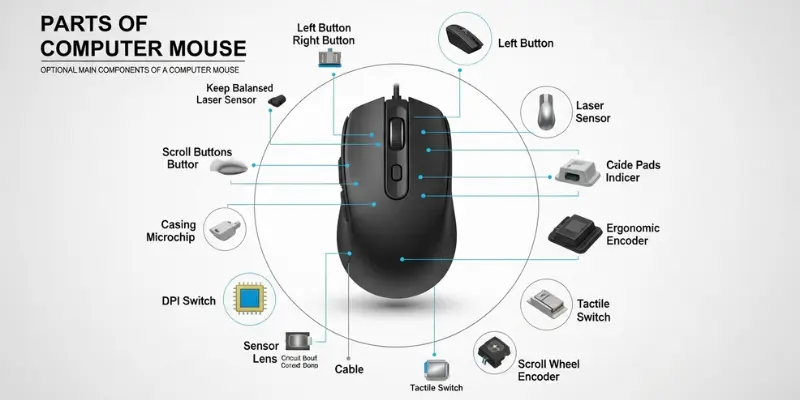
Here are 18 Parts of Computer Mouse Included:
- Left Button
- Right Button
- Scroll Wheel
- Optical Sensor
- Laser Sensor
- Trackball
- Microchip
- Circuit Board
- DPI Switch
- Side Buttons
- Casing
- Pads
- Indicators
- Cable
- Ergonomic Grip
- Sensor Lens
- Scroll Wheel Encoder
- Tactile
1. Left Button
The left button is the main button on a computer mouse. It is placed on the left side of the mouse for right-handed users. This button is used most often when working on a computer. The left button is simple but very important for everyday tasks. It works by sending a signal to the computer when it is pressed.
Left Button Functions:
- Click to select files, folders, or icons on the screen.
- Double-click to open programs, documents, or folders quickly.
- Drag items by holding the button and moving the mouse.
- Highlight text or images for editing or copying.
- Perform actions in games and software programs.
- Combine with keyboard keys for shortcuts (like Ctrl + Click).
2. Right Button
The right button is located on the right side of a computer mouse. It is used less often than the left button but is very useful. This button helps users access extra options for files, folders, and programs. It works by sending a signal to the computer, telling it to show special commands for the item selected.
Right Button Functions:
- Open context menus with options like copy, paste, delete, or rename.
- Show properties of files, folders, or programs.
- Access shortcuts for quick actions.
- Perform special commands in software programs.
- Help with tasks in games and applications that require right-click actions.
3. Scroll Wheel
The scroll wheel is located between the left and right buttons on a computer mouse. It helps users move up and down on pages or documents quickly. The scroll wheel can also be pressed like a button in some programs. It works by sending signals to the computer when it is rolled or pressed.
Scroll Wheel Functions:
- Scroll up and down on documents, web pages, and lists.
- Press to act as a middle button in certain programs.
- Zoom in or out in applications that support scrolling.
- Navigate long pages without using the keyboard.
- Open links in a new tab when pressed in web browsers.
4. Optical Sensor
The optical sensor is located underneath the mouse. It uses light to detect movement on a surface. This sensor helps the computer know where to move the cursor on the screen. It works by sending information about the mouse movement to the computer.
Optical Sensor Functions:
- Track the movement of the mouse on a desk or mouse pad.
- Move the cursor accurately on the screen.
- Work on most smooth surfaces for general use.
- Enable precise control for clicking and dragging.
- Provide consistent tracking for everyday tasks.
5. Laser Sensor
The laser sensor is found under the mouse, like the optical sensor. It uses a laser light to detect movement. This sensor is more precise than the optical sensor. It helps the cursor move smoothly and accurately on many surfaces.
Laser Sensor Functions:
- Track mouse movement on different surfaces, including rough or dark ones.
- Provide smooth and fast cursor control.
- Improve accuracy for games and design tasks.
- Send precise movement information to the computer.
- Work well on both mouse pads and desks.
6. Trackball
The trackball is a small ball found on some computer mice. Users move the ball directly with their fingers to control the cursor. It stays in one place while the ball moves. The trackball helps control the pointer without moving the whole mouse.
Trackball Functions:
- Move the cursor by rolling the ball in any direction.
- Provide precise control for selecting items.
- Reduce wrist movement compared to a regular mouse.
- Help work in small spaces where a normal mouse cannot move.
- Enable smooth and accurate navigation in games and design software.
7. Microchip
The microchip is a small electronic part inside the mouse. It processes signals from the buttons, sensors, and other parts. The microchip helps the mouse communicate with the computer. It ensures that all actions from the mouse work correctly.
Microchip Functions:
- Convert button presses into digital signals for the computer.
- Process movement data from sensors.
- Send accurate information to the computer for cursor control.
- Ensure smooth functioning of all mouse features.
- Coordinate between different parts of the mouse for proper operation.
8. Circuit Board
The circuit board is inside the mouse. It holds all the electronic parts in place. The board connects the buttons, sensors, and microchip. It allows electricity and signals to move between all parts.
Circuit Board Functions:
- Connect sensors, buttons, and microchips for proper working.
- Control the flow of electricity inside the mouse.
- Ensure all parts work together smoothly.
- Support the signals from buttons and sensors to the computer.
- Maintain stability and accuracy of mouse operations.
9. DPI Switch
The DPI switch is a small button on some computer mice. It changes how fast or slow the cursor moves on the screen. The switch helps users adjust the mouse sensitivity for different tasks.
DPI Switch Functions:
- Increase or decrease cursor speed on the screen.
- Adjust sensitivity for gaming or design work.
- Switch settings quickly without using software.
- Provide better control for precise movements.
- Help users customize the mouse for comfort and efficiency.
10. Side Buttons
Side buttons are extra buttons located on the side of some computer mice. They are usually used with the thumb. These buttons provide quick access to special commands and shortcuts.
Side Buttons Functions:
- Go back or forward in web browsers.
- Perform customized actions in games or software.
- Access shortcuts for copy, paste, or other commands.
- Provide easier navigation without moving the cursor too much.
- Improve efficiency during computer tasks.
11. Casing
The casing is the outer shell of the computer mouse. It protects all the parts inside. The casing also gives shape to the mouse and makes it comfortable to hold.
Casing Functions:
- Protect internal parts like buttons, sensors, and circuits.
- Provide a comfortable grip for the hand.
- Maintain the shape and structure of the mouse.
- Keep the mouse safe from dust and minor damage.
- Support ergonomic design for long use.
12. Pads
Pads are small, smooth surfaces located at the bottom of a computer mouse. They help the mouse glide easily on different surfaces. Pads reduce friction and make the movement of the mouse smooth and steady. They also protect both the mouse and the desk from scratches.
Pads Functions:
- Reduce friction while moving the mouse.
- Provide smooth and easy movement on desks or mouse pads.
- Protect the bottom of the mouse from wear and tear.
- Improve tracking accuracy of the cursor.
- Enhance overall comfort during computer use.
13. Indicators
Indicators are small lights found on some computer mice. They show the current status or settings of the mouse. Indicators help users know if the mouse is working properly or if certain features are active.
Indicators Functions:
- Show power or battery level of the mouse.
- Indicate the DPI setting or sensitivity level.
- Display connection status, such as wired or wireless.
- Provide visual feedback when buttons or features are used.
- Help users operate the mouse without confusion.
14. Cable
The cable is the wire that connects a wired computer mouse to the computer. It carries power and data between the mouse and the computer. The cable ensures that the mouse works continuously without interruption.
Cable Functions:
- Send signals from the mouse to the computer.
- Provide power to the mouse for operation.
- Ensure a stable and continuous connection.
- Allow the computer to receive accurate movement and click data.
- Maintain proper communication between mouse and computer.
15. Ergonomic Grip
The ergonomic grip is the part of the mouse shaped to fit the hand comfortably. It helps users hold the mouse for a long time without strain. The grip makes it easier to control the mouse while working or playing games.
Ergonomic Grip Functions:
- Provide a comfortable position for the hand.
- Reduce wrist and hand strain during long use.
- Improve control and stability of mouse movements.
- Support better posture while using the computer.
- Enhance overall user comfort and efficiency.
16. Sensor Lens
The sensor lens is a small part located under the mouse, in the optical or laser sensor. It focuses light to detect the movement of the mouse accurately. The lens helps the computer track the cursor on different surfaces.
Sensor Lens Functions:
- Focus light from the sensor to track movement.
- Improve cursor accuracy on screens.
- Work with the microchip to move the pointer correctly.
- Enable smooth tracking on various surfaces.
- Support precise control for games and design work.
17. Scroll Wheel Encoder
The scroll wheel encoder is a small part inside the mouse that detects the movement of the scroll wheel. It tells the computer how the wheel is being turned. This part helps the mouse scroll smoothly and respond correctly.
Scroll Wheel Encoder Functions:
- Track the direction of the scroll wheel movement.
- Detect how fast the wheel is rolled.
- Send signals to the computer for scrolling actions.
- Enable smooth scrolling on documents and web pages.
- Work with software to perform accurate scrolling.
18. Tactile
Tactile parts are found in the buttons of a computer mouse. They provide physical feedback when a button is pressed. This feedback helps users know that their click has been registered.
Tactile Functions:
- Give a click feeling when pressing buttons.
- Improve accuracy while clicking.
- Provide confirmation that an action is performed.
- Enhance comfort during long use.
- Help users work faster and with confidence.
Conclusion
A computer mouse may look small, but it has many important parts. Each parts of computer mouse has a special role to make the mouse work properly. From the left and right buttons to the sensors, scroll wheel, and ergonomic grip, every component helps users control the computer easily.
FAQs About Parts of Computer Mouse
A computer mouse has many parts, and beginners often have questions about how they work. Here are some common questions and answers to help understand the mouse better.
The scroll wheel helps move up and down on pages or documents quickly. Some mice allow pressing the wheel for extra actions.
The DPI switch changes the cursor speed. Higher DPI makes the pointer move faster, and lower DPI gives more precise control.
Side buttons provide quick access to commands like going back or forward in browsers or using shortcuts in games and software.
The optical sensor detects movement using light and helps move the cursor accurately on the screen.
Yes, a trackball can control the cursor without moving the whole mouse. It is helpful in small spaces or for precise movements.
The microchip processes signals from buttons and sensors and sends information to the computer for cursor movement and clicks.
The sensor lens focuses light from the optical or laser sensor to detect movement accurately on different surfaces.
Indicator lights show battery level, DPI settings, or connection status, helping users know the mouse’s current state.
Pads reduce friction and allow the mouse to glide smoothly on desks or mouse pads, protecting both the mouse and the surface.
Tactile feedback gives a click feeling when pressing buttons, helping users know that their action is registered.