Trackball Mouse
Published: 2 Nov 2025
Picture a billiard ball sitting on your desk that controls your entire computer. That unusual image describes exactly what a trackball mouse looks like and how it works. Instead of sliding a device around your desk, you simply roll a smooth ball with your fingers. This strange-looking tool might seem odd at first glance. Yet thousands of professionals rely on trackballs as their primary input device every single day. Here are the explanations of the parts of a computer in Exploring Computer Science.
What is a Trackball Mouse?
A trackball mouse keeps your hand in one place while you work. The device uses a rolling ball that you control with your thumb or fingers. This stationary mouse design has been around since the 1940s but remains popular today.
How a Trackball Mouse Works
The marble mouse works through sensors that track the ball movement. When you roll the ball in any direction, optical or laser sensors inside the device read that movement. These sensors then tell your computer where to move the cursor. Most modern trackball mice use an optical trackball sensor. This type of sensor is more accurate than older designs. Some high-end models use a laser trackball for even better precision.

The ball sits on small bearings that let it spin smoothly. Better models use low friction bearings that make the ball glide easily. Some premium devices even have ceramic ball support points that reduce wear over time. You can adjust cursor speed settings on most trackballs. Higher DPI adjustable trackball settings make the cursor move faster with less ball movement. Lower settings give you more control for precise work.
Types of Trackball Mice
Trackball mice come in three main types based on how you control them. Each type offers different benefits for different users. Understanding these types helps you choose the right device for your needs.

1. Best Finger Operated Trackball Mouse
The Kensington Expert Mouse is the king of finger trackballs. This large trackball mouse has a 55mm trackball that sits in the center. You control it with your fingers instead of your thumb.
2. Best Thumb Operated Trackball Mouse
The Logitech Ergo M575 takes the crown for thumb operated trackballs. This affordable device offers great value and solid performance. It replaced the older M570 model and improved on almost everything.
3. Best Mid Range Trackball Mouse
The Logitech MX Ergo stands out as a top choice in the mid-range category. This wireless trackball offers excellent build quality and a comfortable design. It works well for people who want premium features without spending too much.
Best Budget Trackball Mouse
The Kensington Orbit stands out as a cheap trackball mouse that does not compromise quality. This simple device gives you finger trackball control without expensive features you might not need. The compact trackball design saves desk space while still being comfortable. The ball is smaller than premium models but still easy to control. For basic office work and web browsing, it works perfectly fine.
This wired trackball connects through USB. While it lacks wireless features, the cable connection means no batteries and no lag. Some people prefer this reliable connection for their work. The Orbit has two buttons and a scroll ring. While it lacks extra programmable buttons, the basics are all there. This trackball mouse under 50 dollars gives you excellent value.
Best Trackball For Enthusiasts
The Elecom HUGE lives up to its name. This massive trackball mouse has the largest ball you can find on a consumer device. The huge ball gives you incredible precision and smooth movement. This finger trackball sits at a slight angle for a better ergonomic position. Your hand rests naturally on the device with your fingers ready to move the ball. The asymmetrical trackball shape fits most hand sizes well.
Eight buttons give you tons of options for customization. You can program these for shortcuts, macros, or special functions. Power users love having this many options on a multifunction ball device. The wireless trackball connects through 2.4GHz wireless technology. It offers a stable connection and good battery life. For people serious about trackballs, this device delivers premium performance.
Benefits of Using a Trackball Mouse
Switching to a ball-based mouse brings many advantages for your health and productivity. These benefits make trackballs popular among people who work long hours at computers. Understanding these advantages helps you decide if a trackball is right for you.
| Advantages of Trackball Mouse |
|---|
|
Best Trackball Mouse Models in 2025
The market offers many excellent trackball options for different needs and budgets. These models represent the best choices available this year. Each category serves different types of users with specific requirements.

1. Premium Category
The Logitech MX Ergo remains a top choice for premium buyers. This Bluetooth trackball with a scroll wheel offers everything most people need. The tilt feature sets it apart from competitors.
2. Mid-Range Options
The Logitech Ergo M575 offers the best value in the mid-range. It has almost all the features of the MX Ergo at a lower price. This makes it the best trackball 2025 choice for most buyers.
3. Budget Choices
The wired Kensington Orbit works as an excellent entry point. This trackball mouse under $50 lets you try the technology without a major investment. The Perixx PERIPRO series offers some affordable options too.
4. Specialized Models
The ProtoArc EM01 focuses on ergonomics with a unique design. This ProtoArc trackball has an angled shape that some users find more comfortable. The GameBall trackball targets gamers specifically.
5. Gaming Trackballs
While rare, some devices work well for gaming trackball applications. The GameBall mentioned above was designed for FPS trackball gaming. It has competitive gaming trackball features like adjustable DPI and extra buttons.
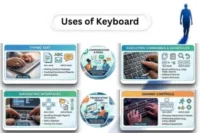
Uses of the Trackball Mouse
Different tasks require different features from your pointing device. A trackball can excel in many situations with the right model and setup. Knowing which type works best for your work helps you choose wisely.
- Office and Productivity: The trackball mouse office environment is perfect for this office environment. Office productivity trackball models help you work faster with less fatigue. Features like programmable buttons let you create shortcuts for common tasks.
- CAD and Design Work: A trackball mouse CAD users need precision above all else. The smooth ball rotation and high precision ball movement help you create exact lines and shapes. Many architects and engineers prefer a trackball mouse for CAD work over regular mice.
- Graphic Design and Photo Editing: A trackball mouse for graphic design gives you fine control over tools. In programs like Photoshop, you need pixel-level accuracy. The trackball mouse for Photoshop workflows delivers that precision.
- Programming and Development: A trackball mouse for programmers reduces strain during long coding sessions. Programmers spend hours with their hands on the keyboard and mouse. The reduced arm movement prevents fatigue.
- Gaming: While not common, some people use a trackball mouse for FPS gaming. It takes practice but offers unique advantages. Your aim stays smooth because there is no mouse jitter from hand shake.
- Media Center Control: A trackball works great as an HTPC remote control from your couch. You can control your media center without needing a flat surface. The ball lets you navigate menus comfortably.
- Accessibility and Special Needs: A trackball mouse’s accessibility features help people with limited mobility. Those who cannot move their arm much can still control a computer with just finger movement. Some trackballs are sold as medical-grade trackball devices for therapeutic use.
- Industrial and Public Use: An industrial trackball must withstand harsh conditions. These devices resist dust, liquids, and rough handling. Some are waterproof trackball models that work in wet environments.
How to Use a Trackball Mouse Properly
Learning to use a trackball effectively takes some practice and proper technique. Good habits from the start help you avoid frustration and get the most benefit. Following these guidelines makes the transition smooth and comfortable.
- Initial Setup and Learning: The learning curve for the trackball presents is real but manageable. Most people adapt within a few days to a week. Start by using it for simple tasks like web browsing before moving to precision work.
- Hand Position: Rest your hand naturally on the device. Do not grip it tightly. Your palm should rest comfortably with fingers relaxed.
- Ball Movement Technique: Use small movements at first. You do not need to spin the ball hard. Gentle rolls work better for accuracy.
- Button Usage: Program the back forward buttons for navigation if your model allows it. This speeds up web browsing and file management. Set up custom macros for tasks you repeat often.
- Ergonomic Tips: Keep your wrist in a neutral wrist position. It should stay straight, not bent up, down, or sideways. This posture improving input device position prevents strain.
Common Problems and Solutions
Even the best trackballs can develop issues over time or require adjustment. Knowing how to fix common problems saves frustration and keeps your device working well. Most issues have simple solutions you can handle yourself.
- Ball Moves Roughly: This happens when dust builds up. The cleanable trackball design makes fixing this easy. Remove the ball and wipe it with a cloth.
- Cursor Jumps or Stutters: Dirty sensors cause this problem. Clean the optical sensor carefully with a cotton swab. Do not use liquid cleaners on the sensor.
- Ball is Too Sensitive or Slow: Adjust your DPI settings in the trackball software. Most devices let you set different sensitivity levels. Find what feels comfortable for your work style.
- Buttons Stop Working: Long life switches eventually wear out with heavy use. If a button fails, you might need professional repair or replacement. Most quality trackballs last for years before this happens.
- Ball Falls Out: This should not happen with proper design. Make sure you inserted the ball correctly. The replaceable ball should snap into place securely.
- Cannot Connect Wirelessly: For Bluetooth problems, remove the device from your computer and pair it again. Make sure the trackball is in pairing mode. For 2.4GHz dongle mouse connection issues, try the receiver in a different USB port.
- Hard to Clean: Regular cleaning prevents major buildup. Clean your trackball weekly if you use it daily. This maintenance keeps the durable bearings working smoothly.
- Discomfort During Use: If you feel pain, check your hand position. Your wrist should not bend. Consider a model with a different design if your current one does not fit your hand well.
- Too Much Desk Movement: Remember that desk space is a major benefit. The device should never move. If it slides around, check that the anti-slip base is clean and not worn.
- Accuracy Issues for Detail Work: Professional work needs high precision. Use the highest quality ball your device offers. Some premium models come with a ruby ball trackball option that rolls smoother than plastic.
FAQs about Trackball Mouse
A traditional mouse moves across your desk to control the cursor. You slide the whole device around. A trackball controller stays in one place while you roll a ball with your fingers or thumb.
Yes, a ball mouse can help reduce wrist pain for many people. The device stays still so your wrist does not bend side to side repeatedly. Only your fingers or thumb move to control the cursor.
Trackball mouse cleaning is simple. Remove the ball by pushing it out from the bottom or top depending on your model. Wipe the ball with a dry cloth to remove oils and dirt.
Yes, but it takes practice. A gaming trackball works differently from a regular mouse. You need to build new muscle memory for aiming.
Programmers benefit from models with many programmable buttons. The Logitech MX Ergo and Kensington Expert Mouse both work well. They let you set up shortcuts for common coding tasks.
Both help but in different ways. The trackball vs vertical mouse debate depends on your specific pain. A vertical mouse keeps your hand in a handshake position but you still move your arm.
Quality trackballs last for many years. The durable bearings and long life switches handle millions of movements. Many people use the same device for five to ten years.
Yes, especially finger trackballs. A left handed trackball with a centered ball design works for anyone. Models like the Kensington Expert Mouse are truly ambidextrous trackball devices.
Absolutely. The high precision and smooth control make trackballs excellent for CAD. Architects and engineers often prefer them for technical drawing. The ability to make tiny adjustments without arm movement saves time and increases accuracy.
Yes, most trackballs work with any operating system. They function as standard pointing devices that need no special software for basic use. Mac-compatible trackball and Linux-supported trackball options include almost all major brands.
Yes, many video editors love trackballs. They provide smooth scrubbing through timelines. The precise control helps when making fine cuts.
Prices range widely. Budget models cost around 30 to 50 dollars. Mid-range options run 60 to 90 dollars.
Compact models work better for smaller hands. The slim profile trackball design of the Logitech Ergo M575 fits most people. Some finger trackballs have smaller overall size.
Yes, if the tablet supports external pointing devices. Most tablets with USB C trackball or Bluetooth capability work with trackballs. This helps when using tablets for productivity work.
Try both if you can. Thumb models feel more familiar at first because the button layout is similar to regular mice. Finger models often provide better precision for detailed work.
Look for models that require a light touch. Finger trackballs often work better because you can use multiple fingers to share the work. A large ball moves more easily with less force.
Basic cursor control works without any software. You can plug in and start using most trackballs immediately. Special software lets you program extra buttons and adjust settings like sensitivity.
Conclusion
A trackball mouse offers a different way to control your computer. It keeps your arm still while giving you precise cursor control. This design helps reduce wrist pain and works great for small desks.