Types of Keys in Keyboard – Complete Guide for Beginners
Published: 26 Dec 2025
It is interesting to know that a standard keyboard has more than 100 keys, each designed for a specific purpose. There are alphanumeric keys, function keys, control keys, and special keys, and they are organized in a way to make typing and computer navigation easier.
When we explore these keys, we shall give attention to how each key works and what function it has.
Here are explain types of keys in keyboard in proper details. If you want to learn complete details about the keyboard of computer, you can visit EC Science and read about each type of keyboard in detail.
What is Key?
It is important to understand that a key is a button on a keyboard or computer device that performs a specific function. There are many types of keys, and they are used for typing letters, numbers, symbols, or executing commands.
Here, we shall give examples of keys such as the spacebar, enter key, and function keys, and explain how they work.
Different Types of Keyboard Keys
Keyboard is not just a collection of buttons. There are various types of keys, and they are organized to make typing and computer use easier. Here, we shall explore the 10 types of keys in keyboard and functions.
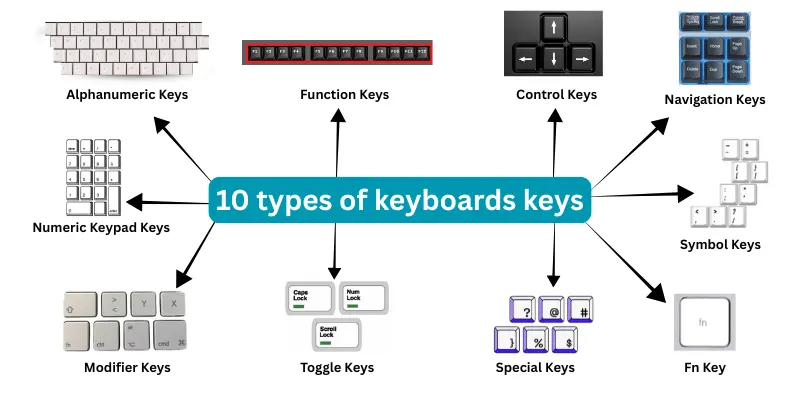
Here are 10 types of keys in keyboard
- Alphanumeric Keys
- Function Keys (F1–F12)
- Control Keys
- Navigation Keys
- Special Keys
- Modifier Keys
- Toggle Keys
- Symbol Keys
- Numeric Keypad Keys
- Fn Key
1. Alphanumeric Keys
It is one of the most commonly used keys of a keyboard, which is alphanumeric keys. There are keys for both alphabet (A-Z) and numbers (0-9), and they are arranged in a standard pattern called QWERTY. These keys are used to type letters, emails, stories, or other forms of text.
Functions of Alphanumeric Keys:
- Type letters (A–Z)
- Type numbers (0–9)
- Type Symoble
- Types special keys like (tab, ctrl, alt, tab and caps lock)
- Type words, sentences, and numerical data
- Used for filling forms and entering login credentials
- Work with other keys for shortcuts or special commands
2. Function Keys
It is a set of keys located at the top row of the keyboard, where each key has a special function. There are twelve function keys, and they are labeled F1 to F12. They are used by those who want to perform quick actions on a computer.
Here, if you press a function key, it shall give commands depending on the program you are using, and how it works can change in different software.
Function of Function Keys
- F1: It is commonly used to open the Help menu in most applications.
- F2: It is used to rename selected files or folders in Windows.
- F3: It is mainly used to search for files, folders, or content.
- F4: It is used with the Alt key (Alt + F4) to close the current window or program.
- F5: It is used to refresh or reload the current page or window.
- F6: It is used to move the cursor to the address bar in web browsers.
- F7: It is mainly used for spell check and grammar check in programs like Microsoft Word.
- F8: It is used to enter the Windows startup menu during boot (like Safe Mode).
- F9: It is used to refresh documents in Microsoft Word or send/receive emails in Outlook.
- F10: It is used to activate the menu bar in many applications.
- F11: It is used to enter or exit full-screen mode in web browsers.
- F12: It is used to open the “Save As” dialog in Microsoft Word.
3. Control Keys
Control Keys is used to controlling the actions of your computer. It is important to know that they do not type characters but instead perform special tasks. There are keys like Ctrl, Alt, and Esc which work in combination with other keys to give commands. They are widely used in shortcuts, where efficiency is needed.
Functions of Control Keys
- Ctrl: It is used in combination with other keys to perform shortcuts (e.g., Ctrl + C to copy, Ctrl + V to paste).
- Alt: It is used to access menu options or perform shortcuts (e.g., Alt + Tab to switch windows).
- Esc: It is used to cancel or exit a task or dialog box.
- Windows Key: It is used to open the Start menu or perform Windows shortcuts (e.g., Win + D to show desktop).
- Menu Key: It is used to open context menus similar to right-clicking with a mouse.
4. Navigation Keys
Navigation Keys help move the cursor and screen from one place to another. It is easy to use them when working with long documents or web pages. There are keys like Arrow keys, Home, End, Page Up, and Page Down, and they are designed to control movement rather than typing text. Then, other keys in this group help users go where they want quickly.
Here, if someone was editing a document, these keys shall give better control over cursor movement and page navigation, which is part of the main structure of keyboard use.
Functions of Navigation Keys
- Arrow Keys: Move the cursor up, down, left, or right.
- Home Key: Move the cursor to the beginning of a line or document.
- End Key: Move the cursor to the end of a line or document.
- Page Up: Scroll the screen upward.
- Page Down: Scroll the screen downward.
5. Special Keys
Special Keys are used to perform specific actions instead of typing letters or numbers. It is clear that these keys help control commands and editing tasks. There are keys like Enter, Backspace, Delete, Tab, and Print Screen, and they are used in daily computer work.
Here, if an error was made or movement was required, these keys shall give quick control and support the main structure of keyboard use.
Functions of Special Keys
- Enter Key: Move the cursor to a new line.
- Backspace Key: Delete characters to the left of the cursor.
- Delete Key: Delete selected files or text.
- Tab Key: Move the cursor to the next tab stop.
- Print Screen: Capture the screen shots.
- Spacebar: Create space between words.
6. Modifier Keys
Modifier Keys are used together with other keys to change their action. It is important to know that these keys do not work alone in most cases. There are keys like Shift, Ctrl, Alt, and Windows key, and they are used to modify how other keys behave. Then, other commands become active when these keys are pressed together.
Here, if a shortcut was needed, these keys shall give faster control and support the main structure of keyboard operations.
Functions of Modifier Keys
- Shift Key: Type capital letters.
- Ctrl Key: Perform actions like copy, paste, and save.
- Alt Key: Use to change or alternate command.
- Windows Key: Open the Start menu.
7. Toggle Keys
Toggle Keys are keys that switch a function on or off when pressed. It is easy to notice their effect because the action stays active until the key is pressed again. There are keys like Caps Lock, Num Lock, and Scroll Lock, and they are used to change typing or keypad behavior.
Here, if Caps Lock was turned on, the keyboard shall give capital letters, which supports the main structure of typing.
Functions of Toggle Keys
- Caps Lock: Turn capital letters on or off.
- Num Lock: Enable or disable the numeric keypad.
- Scroll Lock: Change scrolling behavior in some programs.
8. Symbol Keys
Symbol Keys are keys that type special characters or signs instead of letters or numbers. It is important for typing punctuation, math symbols, and other characters. There are keys like !, @, #, $, %, ^, &, *, (, ), and they are usually combined with the Shift key to access them.
Here, if you need a symbol quickly, the keyboard shall give it without switching to another layout, which is helpful for writing, coding, and calculations.
Functions of Symbol Keys
- Type punctuation marks (., ,, ;, 🙂
- Type math symbols (+, -, *, /, =)
- Access special characters (@, #, $, %, &)
- Used with Shift or Alt keys for alternate symbols.
9. Numeric Keypad Keys
Numeric Keypad Keys are a group of keys on the right side of a standard keyboard. It is designed for quick number entry and calculations. There are numbers 0–9, mathematical operators, and other function keys like Num Lock and Enter. They are very useful in accounting, data entry, and spreadsheets.
Here, if you want to input numbers fast, the numeric keypad shall give you speed and efficiency.
Functions of Numeric Keypad Keys
- Quickly type numbers.
- Perform addition, subtraction, multiplication, and division.
- Enter phone numbers easily.
- Assist with data entry tasks.
- Support calculator and numeric operations.
10. Fn Key
The Fn Key is a special key found on most laptops. It is used to access secondary functions of other keys, usually marked in a different color. There are functions like adjusting volume, brightness, or enabling wireless features. They are combined with other keys to give extra functionality without adding more buttons.
Here, if you want to use shortcuts for hardware functions, the Fn key shall give you convenience and speed.
Functions of Fn Key
- Adjust screen brightness.
- Control volume up, down, or mute.
- Enable or disable Wi-Fi or Bluetooth.
- Activate sleep or display toggle modes.
- Access other secondary functions marked on keys.
Conclusion
Keyboard keys it is useful for faster and easier work. There are many keys with different functions, and they are designed to help in typing, navigation, and shortcuts. Then, knowing each key shall give you better control. Other than typing, keyboards improve efficiency and productivity.
FAQs About Types of Keys in Keyboard
There are several types of keys, including alphanumeric, function, control, navigation, special, modifier, toggle, symbol, numeric keypad, and Fn keys.
Function keys are used by people who want shortcuts for software tasks, such as gamers, programmers, and office workers.
The Shift key is used when you want to type capital letters or other symbols that are on the top part of the key.
The Fn key is usually at the bottom-left of the keyboard and gives access to secondary key functions like brightness and volume.
Toggle keys are keys that stay active until pressed again, such as Caps Lock turning uppercase letters on and off.
Modifier keys are pressed with other keys to perform special actions, like Ctrl + C to copy or Ctrl + V to paste.