What is an Operating System?
Published: 18 Feb 2026
Did you know that every computer, smartphone, and tablet runs on an operating system? It is the main software that allows all other programs to work. Without an operating system, a computer cannot start, save files, or run apps. They are the hidden managers who keep everything running smoothly behind the scenes.
What is an Operating System
An operating system (OS) is a program. That is the main software that manages a computer or device. It is what allows programs to run, files to be saved, and hardware like the keyboard, mouse, and screen to work. They are the bridge between the user and the device, making it easy to use and control.
History of Operating System
The history of the operating system shows how computers became easy to use. At first, computers were very simple machines. They could run only one program at a time, and people had to tell them every step manually. Then, as computers became faster and more complex, there was a need for a system to manage hardware, software, and tasks. The operating system was created to solve this problem. It is the main software that controls how a computer works.
The Beginning of Operating Systems
In the 1940s and 1950s, computers were very large and expensive. People had to write programs on punch cards. They had to start and stop computers manually. There was no operating system at that time. Programs ran one by one, and people had to wait for the computer to finish each program.
- Need arose: People needed a way to make computers run programs automatically without constant manual work.
- First step: Simple monitors were created to help load programs one after another.
The First Operating Systems (1950s–1960s)
The first real operating systems appeared in the late 1950s. These systems were very simple and called batch processing systems.
- Batch processing: It is a method where similar jobs are grouped together and run one after another.
- Purpose: It reduced the waiting time and helped use expensive computers more efficiently.
- Who made them: Early computers like the IBM 701 and the IBM 7090 used these systems. Engineers at IBM helped develop the first OS software.
Multiprogramming and Time-Sharing (1960s–1970s)
As computers became more powerful, people wanted to run more than one program at a time. This need led to the development of multiprogramming and time-sharing systems.
- Multiprogramming: The operating system keeps several programs in memory. It switches between them, keeping the CPU busy.
- Time-sharing: It allows multiple users to access the same computer simultaneously. Each user feels like they have their own computer.
- Importance: This made computers faster, more efficient, and more user-friendly.
Development of Personal Computer Operating Systems (1970s–1980s)
The 1970s and 1980s brought small computers to offices and homes. Operating systems had to be simpler and easier to use.
- CP/M: One of the first popular OS for personal computers.
- MS-DOS: Microsoft created MS-DOS in the 1980s for IBM PCs.
- Importance: These systems allowed regular people to use computers without needing to know complicated instructions.
Modern Operating Systems (1990s–Present)
Modern operating systems are very advanced. They run on laptops, smartphones, tablets, and servers.
- Graphical User Interface (GUI): Makes it easy to use with icons, windows, and menus. Example: Windows, macOS.
- Mobile Operating Systems: For phones and tablets. Example: Android, iOS.
- Features: They manage memory, multitasking, networks, security, and hardware efficiently.
How Does an Operating System Work?
An operating system works as the main manager inside a computer or device. It is the software that makes hardware and apps work together. It is like a helper that tells the CPU, memory, storage, and other parts what to do and when to do it. The operating system runs continuously while the device is on, keeping everything running smoothly in the background.
- When a computer or phone is switched on, the operating system loads into memory. It is ready to control the device before any app starts.
- Handles multiple tasks simultaneously. For example, opening a browser, playing music, and checking email together. It gives each task time on the CPU, so nothing stops working.
- The operating system watches how memory space is used. It gives apps memory when they need it and takes it back when they are done. This stops apps from crashing or mixing data.
- It keeps files and folders safe and easy to find. It lets users create, save, open, and delete files without confusion.
- The OS controls devices like keyboards, mice, printers, and screens. It uses drivers to tell hardware how to work with other software.
- It shows the user what is happening on the screen. It can be a graphical view with icons and windows or a text view where commands are typed.
- The operating system ensures that only authorized users can access files or apps. It protects the system from unwanted access and attacks.
- It helps the device connect to other devices, networks, and the internet. It controls how data moves to and from other systems.
Types of an Operating Systems (OS)
There are different types of operating systems (OS) designed for different tasks and users. They are designed to manage hardware, software, memory, and processes. Each type of OS works differently and serves specific needs, from personal computers to servers and mobile devices. Here are 10 types of OS included.
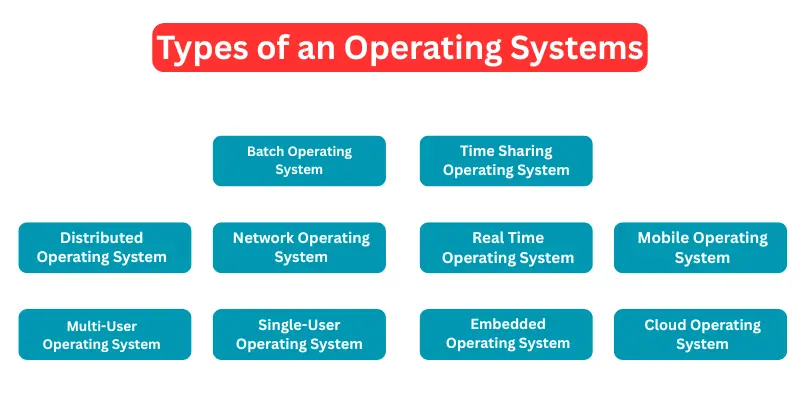
- Batch Operating System
- Time-Sharing Operating System
- Distributed Operating System
- Network Operating System
- Real-Time Operating System (RTOS)
- Mobile Operating System
- Multi-User Operating System
- Single-User Operating System
- Embedded Operating System
- Cloud Operating System
Parts of an Operating System (OS)
It has many parts that work together to make the system run smoothly. Each part has a specific role in managing hardware, memory, files, and tasks. They are essential for making programs run correctly and keeping the device safe and organized. Here are 10 parts of OS for students.
- Kernel
- Process Management
- Memory Management
- File System
- Device Drivers
- User Interface (UI)
- Security and Access Control
- Networking
- Input/Output Management
- Utility Programs
Functions of an Operating System (OS)
It has many important functions that help the system run smoothly. They are responsible for managing hardware, software, memory, files, and tasks. Each function ensures that programs work correctly, that users can interact easily, and that the system remains safe and organized. Here are 14 Functions of OS included.
- Process Management: It manages all programs running on a computer. The OS starts, stops, and switches between tasks so the CPU is used efficiently.
- Memory Management: It controls how RAM is used by different programs. The OS allocates memory to programs when they need it and frees it when they are done.
- File System Management: It organizes files and folders on storage devices. The OS lets users easily save, open, delete, and manage their data.
- Device Management: It controls input and output devices like keyboards, printers, and screens. Device drivers tell the OS how to communicate with hardware.
- User Interface (UI): It provides a way for people to interact with the computer. This can be graphical, with icons and windows, or text-based, using commands.
- Security and Access Control: It protects the system from unauthorized access. The OS manages passwords and permissions and protects against malware and attacks.
- Networking: It manages connections between computers and devices in a network. The OS handles data transfer, internet access, and communication.
- Multitasking: It allows multiple programs to run simultaneously without interfering with each other. Users can work on several tasks smoothly.
- Error Detection and Handling: It monitors the system for errors. If a program crashes or a device fails, the OS identifies the problem and manages it safely.
- System Performance Management: It ensures the computer works efficiently. The OS allocates resources, balances tasks, and keeps the system responsive.
- I/O Management: This function manages input and output operations. It ensures data moves smoothly between the CPU, memory, and devices like keyboards, mice, and printers.
- Secondary Storage Management: It organizes and manages storage devices like hard drives, SSDs, and external drives. It keeps files safe and makes data easy to access.
- Command Interpretation: The process of interpreting commands from users or programs. The OS reads instructions and executes them, ensuring tasks are completed correctly.
- Communication Management: It handles the exchange of data between different processes, programs, or computers. It ensures proper communication in networks and between applications.
Examples of an Operating System (OS)
They manage programs, memory, files, and hardware so devices work efficiently. There are many operating systems for different types of devices. Each OS has its own features, strengths, and purposes. Here are 10 examples of an operating system with simple explanations:
- Windows
- macOS
- Linux
- Android
- iOS
- Unix
- Chrome OS
- DOS
- Ubuntu
- Solaris
Difference between 32-Bit vs. 64-Bit Operating System
Computers and devices can run either 32-bit or 64-bit operating systems. They are different in how they handle memory, processing, and software. Here are the details explaining the difference between 32-bit and 64-bit operating systems for students.
| Feature | 32-Bit Operating System | 64-Bit Operating System |
|---|---|---|
| Memory Usage | Can use up to 4 GB of RAM | Can use more than 4 GB of RAM |
| Data Processing | Processes 32 bits of data at a time | Processes 64 bits of data at a time |
| Software Compatibility | Supports 32-bit software only | Supports 32-bit and 64-bit software |
| Performance | Slower for large programs and heavy tasks | Faster and better for large programs and multitasking |
| Hardware Support | Works on older hardware | Requires modern hardware |
| Security | Basic security features | Advanced security features, more robust |
| Applications | Limited to smaller applications | Can run larger, more demanding applications |
| Usage | Suitable for older PCs and small tasks | Suitable for modern PCs, gaming, and professional work |
Advantages and Disadvantages of an Operating System
There are many benefits and drawbacks of operating systems. Here are 10 advantages and 10 disadvantages of operating systems, explained in detail for students.
| 10 Advantages of an Operating System? |
|---|
|
| 10 Disadvantages of an Operating System |
|---|
|
Conclusion
So friends, it’s time to wrap up! In this article, we have explained what an operating system is and how it works. You should choose an OS that fits your needs, whether for studying, working, or gaming. A good operating system makes using your computer easy and enjoyable. Keep learning and explore other articles on our site to get more tips about computers.
FAQs About What is an Operating System
Many people ask questions about what is an operating system. Here are some questions explained in detail for students.
An operating system is important because it controls the computer. Without it, a computer cannot work properly.
Here are some common 5 examples of operating systems included:
- Windows
- macOS
- Linux
- Android
- iOS
The main functions include memory management, process management, file management, and device management.
No, a computer cannot function properly without an operating system. The OS is necessary to run programs and control hardware.
A 32-bit OS can use up to 4 GB of RAM, while a 64-bit OS can use more than 4 GB of RAM and provides better performance.
Multitasking means running multiple programs at the same time. The operating system manages all tasks smoothly.
Below are the main 5 types of operating systems:
- Batch Operating System
- Time-Sharing Operating System
- Distributed Operating System
- Network Operating System
- Real-Time Operating System (RTOS)
Below are the main 5 functions of operating systems:
- Process Management
- Memory Management
- File System Management
- Device Management
- Security Management
Below are the main 5 parts of operating systems:
- Kernel
- User Interface (UI)
- File System
- Device Drivers
- System Utilities
The best operating system depends on your needs. For example, Windows is popular for general use, macOS for Apple devices, and Linux for developers.