How to Disable Laptop Keyboard?
Published: 26 Oct 2026
You can turn off the built-in keyboard of a laptop on Windows and on a Mac. This guide explains each method step by step how to disable laptop keyboard. Before you start, connect an external keyboard so you can still type when you need to.
Method 1: Using Device Manager (Windows 10 and 11) How to Disable Laptop Keyboard?
This is the quickest method. The keyboard stays off until you restart the laptop.
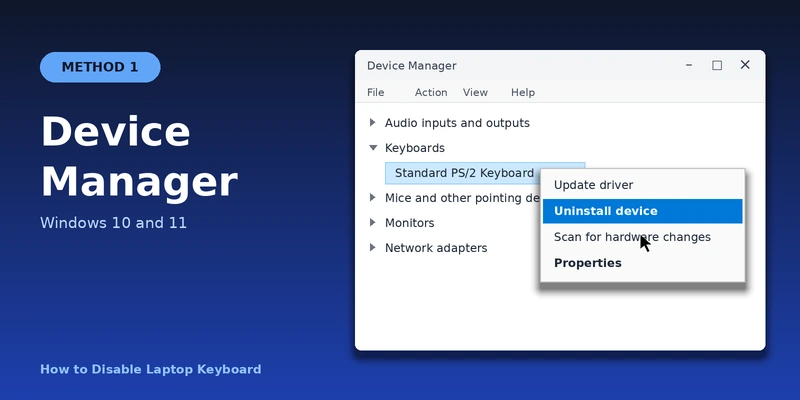
- Right-click the Start button and select Device Manager.
- Double-click Keyboards to open the list.
- Right-click Standard PS/2 Keyboard. This is the built-in laptop keyboard on most laptops.
- Click Uninstall device.
- Click Uninstall in the confirmation box.
The laptop keyboard stops working right away.
To enable it again: Restart the laptop. Windows installs the keyboard again by itself. You can also open Device Manager, click Action, and select Scan for hardware changes.
Method 2: Disable the Laptop Keyboard Using Command Prompt (Windows 10 and 11)
This method keeps the keyboard off, even after you restart the laptop.
- Click Start and type cmd.
- Right-click Command Prompt and select Run as administrator.
- Click Yes if Windows asks for permission.
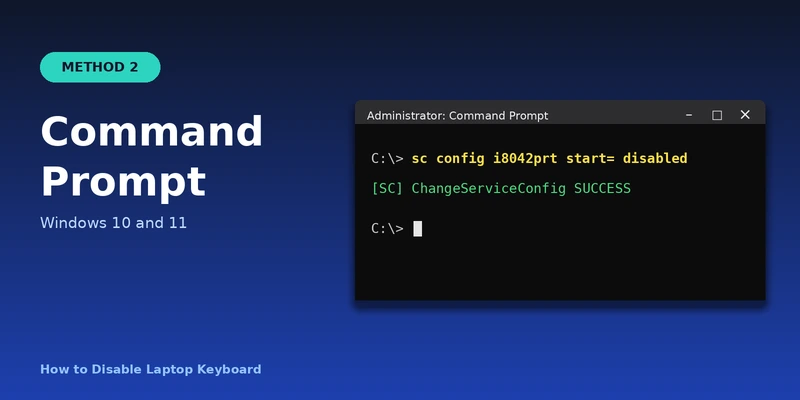
- Type the following command and press Enter. Keep the space after the equal sign.
sc config i8042prt start= disabled
- Wait for the message [SC] ChangeServiceConfig SUCCESS.
- Restart the laptop.
The built-in keyboard is now disabled.
To enable it again:
- Connect an external keyboard, or open the On-Screen Keyboard by pressing Windows + Ctrl + O.
- Open Command Prompt as administrator.
- Type the following command and press Enter.
sc config i8042prt start= auto
- Restart the laptop.
Method 3: Disable the Laptop Keyboard Using Group Policy Editor (Windows 10 and 11 Pro, Enterprise, and Education)
This method blocks the keyboard by its hardware ID. Group Policy Editor is not available in Windows Home.
Step A: Copy the hardware ID
- Right-click the Start button and select Device Manager.
- Double-click Keyboards.
- Right-click Standard PS/2 Keyboard and select Properties.
- Open the Details tab.
- In the Property drop-down list, select Hardware Ids.
- Right-click the first value in the list and select Copy. It usually looks like ACPIVEN_PNP&DEV_0303.
Step B: Block the keyboard
- Press Windows + R, type gpedit.msc, and press Enter.
- Go to Computer Configuration > Administrative Templates > System > Device Installation > Device Installation Restrictions.
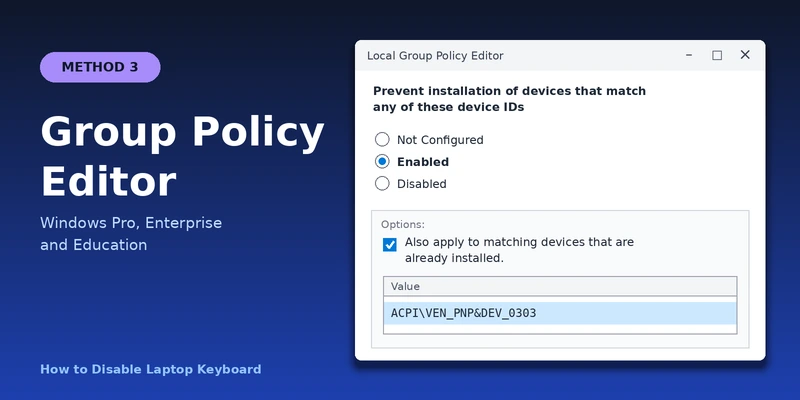
- Double-click Prevent installation of devices that match any of these device IDs.
- Select Enabled.
- Under Options, check Also apply to matching devices that are already installed.
- Click Show.
- Paste the hardware ID in the Value box and click OK.
- Click Apply, then click OK.
- Restart the laptop.
The built-in keyboard is now disabled.
To enable it again: Open the same policy, select Not Configured, click Apply and OK, and restart the laptop.
Method 4: Disable the Laptop Keyboard on a Mac Using Karabiner-Elements
macOS has no built-in setting to turn off the laptop keyboard. You can do it with a free app called Karabiner-Elements. This method needs an external keyboard connected to the Mac.
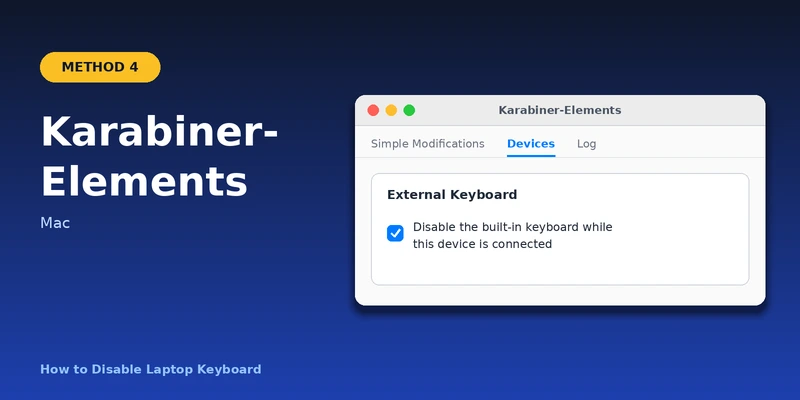
- Download Karabiner-Elements from its official website and install it.
- Open System Settings and go to Privacy & Security.
- Allow Karabiner-Elements in Input Monitoring and approve any system extension or background item request.
- Connect your external keyboard.
- Open Karabiner-Elements and click the Devices tab.
- Find your external keyboard in the list.
- Turn on Disable the built-in keyboard while this device is connected.
The Mac keyboard stops working while the external keyboard is connected.
To enable it again: Turn off the same option in Karabiner-Elements, or disconnect the external keyboard.
Conclusion
You can disable a laptop keyboard in just a few minutes. On Windows, use Device Manager for a quick, temporary fix, Command Prompt for a lasting one, or Group Policy Editor on Pro, Enterprise, and Education editions. On a Mac, use Karabiner-Elements with an external keyboard connected. Every method can be undone, so you can turn your laptop keyboard back on whenever you need it.